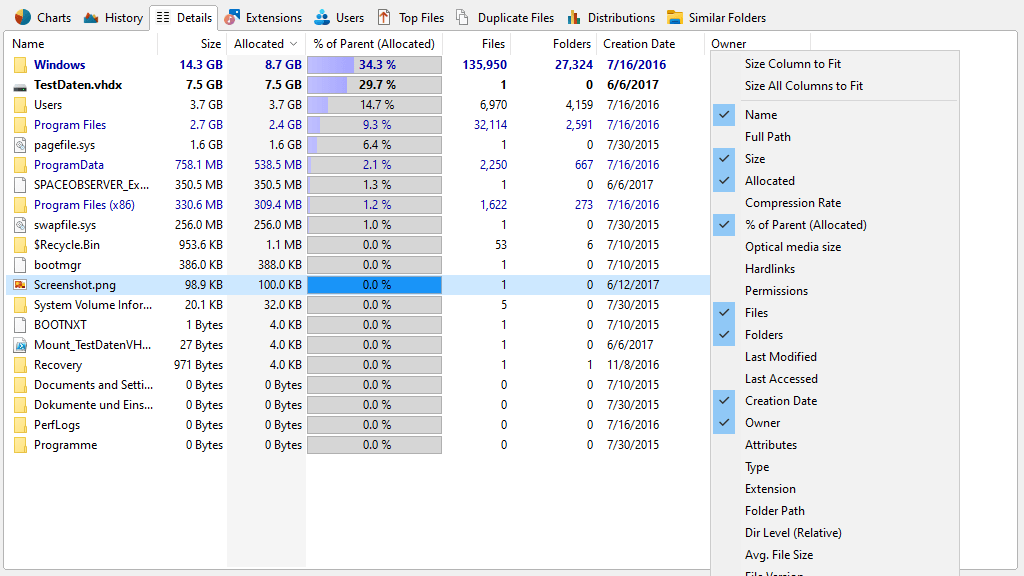
The Details view provides an Explorer-like list of files and folders that are contained in the current selected item in the Directory Tree. Detailed information on each file or folder can be shown by selecting the desired attribute in the column list, available by right-clicking the header of the list or via the Details page in the options dialog of SpaceObServer.
Context tab: Details
Like every view in SpaceObServer, the "Details" view comes with a Ribbon tab that is activated when the list is clicked. The Ribbon tab provides commonly used list functions such as select operations or export features.

The following commands are available on the "Details" tab:
Delete |
Deletes the selected items. Hold the "Shift" key to remove the item(s) from the disk permanently (Please note: You cannot recover files that have been removed permanently!). |
Properties |
Shows the properties for the selected item. |
Move items |
Opens a new dialog with enhanced features to move, delete, archive etc... the selected/checked items. |
|
|
Export Details |
Exports the contents of the list to a file. If two or more items are selected, only the selected items will be exported. Available file formats are "Microsoft Excel Files (.xlsx)", "Text Files (.txt)", "HTML Files (.html)", "CSV (Comma Separated Values) Files (.csv)", and "PDF Files (.pdf)". |
Send List |
Sends the content of the list via email. |
Copy List |
Exports the contents of the list to the clipboard. If two or more items are selected, only the selected items will be exported. |
Print right pane |
Prints the selected items of the list. |
|
|
Select all |
Selects all items in the list. |
Select none |
Unselects the list items. |
Invert selection |
Inverts the selection. |
|
|
Show Checkboxes |
Toggles the visualization of checkboxes in the "Details" list and in the Directory Tree. |
Check Selected Items |
Checks the currently selected list items. |
Uncheck Selected Items |
Unchecks the currently selected list items. |
|
|
Edit Annotation |
Lets you edit the annotation of the currently selected list items. |
Open Containing Folder |
Opens the containing folder of the currently selected list items. |
Apply NTFS Compression |
Compresses the currently selected list items using NTFS compression. |
|
|
Open command prompt |
Opens command prompt at the current directory of the list. |
Decompress |
Turns off NTFS compression for the currently selected list items. |
Copy File Name |
Copies the name of the currently selected list item to the clipboard. |
|
|
Show Details Flat |
Toggles whether the files of all subfolders should be displayed in the "Details" view. |
Show File Preview |
Toggles if a preview of the selected list item should be displayed on the right of the "Details" view. |
Context Menu on the Details view
The list on the Details view shows the Windows Explorer context menu when you right-click on an item. An additional submenu labeled SpaceObServer is included which shows all information that is available about the selected item.