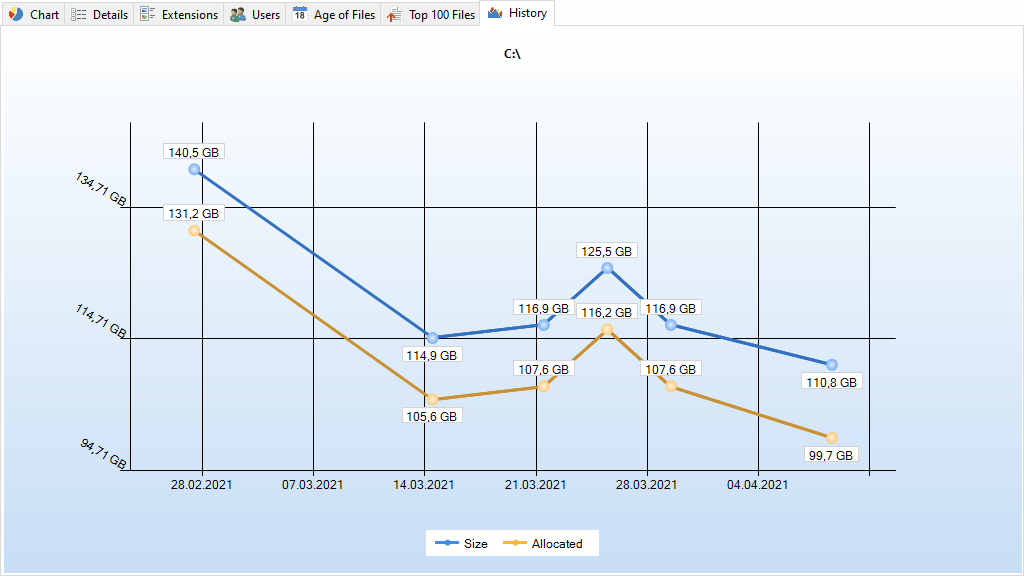
In the History view you can see line charts visualizing the size development of the selected root folder. After each scan the size, allocated space, and number of files of the root folder are stored automatically in an XML file in the users profile of the currently logged-in user. These sizes are used to create this view. As a result the shown interval and frequency depends on the scans you have performed for this root before.
Please note:
•By default, only scans of the same path and the same exclude filters will be displayed in the history, since a common base is needed to compare scans. Using the Ignore scan filter option allows to include scans of the same path, but with differing exclude filters.
•If you are interested in the size development of subfolders in the scanned file system tree, we recommend using our disk space manager SpaceObServer, which archives file system information in a database and is able to track size development down to file level.
Context tab: History
Use the "History" tab to customize the appearance of the chart, to export the chart to a file, and to manage history data.

The following commands are available on the "History" tab:
Export chart |
Save the current chart as graphic file. |
Export the current chart and send it via email. You can configure your email settings in options dialog. |
|
Copy Chart to Clipboard |
Copy the current chart to the clipboard, to paste it into other applications. |
Print right pane |
Print the current chart. |
Manage history data |
Provides actions for the export/import and purge of history data. Additionally allows choosing a new storage location for the data. |
Show zero point |
Show zero point as minimum value in the chart. |
Show "Size/Allocated" series |
Do not only show the currently selected value (size/allocated), but also the respective other one |
Ignore scan filter |
If activated, all scans of the current path will be included with the chart, regardless of the filters used for each of the scans. |
Show average series |
Show or hide a line indicating the average trend for this chart. |
Show labels |
Show info boxes (size values/number of files) in the chart. |
Show total diskspace |
Show or hide a horizontal line showing the total diskspace. |
Equalize chart |
defines wether the chart is displayed interpolated or exact. |
Color gradient as background |
Toggle the gradient in the background of the chart. |
Show data points |
Show or hide points on line chart. |
Zoom in |
Zoom in on the chart |
Zoom out |
Zoom out on the chart |
Zoom 100% |
Reset zoom to 100% |
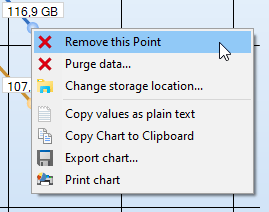
Remove data point
Using the context menu of the History view, you can remove single data points. Please note that this requires the "Show data points" option to be enabled (see above).