The Application Menu (or "File" menu) allows you to select folders for scanning, loading, saving, exporting, or comparing collected data. It also provides access to the application settings and allows you to exit TreeSize.
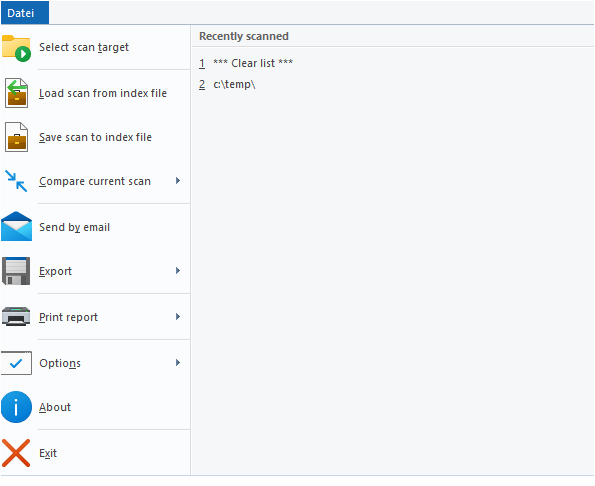
Recently Scanned |
List of recently scanned paths and drives. Clicking a path will start a scan of this path. |
Select directory for scan |
Shows a dialog which lets you choose a target for scanning. When the selection has been confirmed, TreeSize starts scanning the selected path. You can also enter a path directly into the drive combo box in the toolbar. |
Load scan from index file |
Load a saved TreeSize scan from an index file. That way you can view earlier results without performing a whole scan again. |
Save scan to index |
Save the current scan to an index file. This file can be loaded in TreeSize again or can be used to perform a comparison at a later time. Please note that the information about single files is not saved to the XML since this would increase the size of the XML files too much. Only the information about folders is included in the file. If you need reporting on file level, please use the SQLite format or our software SpaceObServer may be useful for you. |
Compare current scan |
Compare the current scan against a previously saved scan (index file) or a Snapshot (only supported for local NTFS drives). After comparison, folders unchanged in size will show up with a size of 0 while folders that have grown will have values greater than 0 and will be displayed in red color. Folders that became smaller compared to the loaded report will have negative values and will be displayed in green color. |
Send by Email |
Send the Directory Tree (left pane) via email. |
Export |
Export the Directory Tree, chart or list content to a file. See chapter Export submenu. |
Print report |
Print the Directory Tree, chart or list content. See chapter Print submenu. |
Options |
Open the options dialog of TreeSize. The submenu also contains commands that allow you to import/export and reset the current options. |
About |
Show version number and contact information. |
Exit |
Closes TreeSize. |