This function enables you to move all checked files and folders in the search result lists to a destination of your choice, archive them in a ZIP file, delete them, or process the files. This function is accessible at "Home > Move items".
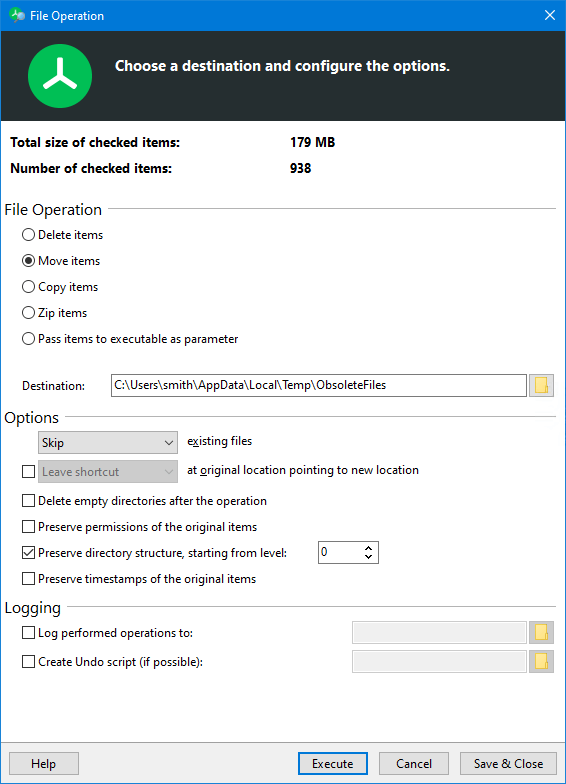
Additional options allow you to customize the file operations to your needs.
Explanations for the individual functions are given in the table below:
File operation:
Delete items |
Deletes all selected files after a security prompt. If the option 'Move to the Recycle Bin' is activated, the files are moved to the Recycle Bin. Otherwise they will be deleted from the hard disk. |
Move items |
Moves selected files to the specified path. Optionally, a shortcut or link can be created at the original location, each pointing to the new position of the moved object. If desired, the security attributes can also be copied. If this is not done, the moved files inherit their security attributes (as usual) from their parent elements. |
Copy items |
Copies selected files to the specified path. If desired, the security attributes are also copied. If this is not done, the moved files inherit their security attributes (as usual) from their parent elements. |
Zip items |
Moves selected files to the specified ZIP archive. |
Pass items to executable as parameters |
Calls a freely selectable executable file for each marked file and passes the absolute path of the file as first parameter to the command line. The executable files can also be batch files, a PowerShell script, a VBScript or similar. The Windows Scripting FileSystemObject provides powerful and easy-to-use file system and path operations. |
Options:
Move to Recycle Bin (if available) |
Here you can specify whether the selected items should be moved to the Recycle Bin or deleted directly from the hard disk. Note: This option is only available for the 'delete' operation. |
Skip/Rename/Replace/Replace only older existing files |
Here you can decide what should happen if name collisions occur during a file operation, i.e. a file with the same name already exists at the destination. You can keep the existing file, replace it with the new file, or rename the existing file. Note: This option is only available for the 'Zip', 'Move' and 'Copy' operations. Not supported when burning to optical media. |
Delete empty folders after the operation |
Automatically removes all folders that no longer contain files or other folders due to this move operation. |
Keep original items after zipping |
Enable this option to ensure that the original files are not deleted after copying them to a Zip file. Note: This option is only available for the 'Zip' operation. |
Preserve permissions of the original items |
When this option is enabled, the access permissions of the original files are applied to each of the moved files in the target. Note: This option is only available for 'Move' and 'Copy' operations. Not supported when burning to optical media. |
Preserve directory structure, starting from level |
This option allows you to specify at what level the directory structure of the files should be retained. The first x levels of the directory structure are not reconstructed at the destination location. For example, if you move the file 'C:\User\Mayer\My Document.doc' to the target folder 'D:\Old Files\', you will get the following results depending on the value you choose for x: Note: This option is only available for the 'Move' and 'Copy' operations. |
Preserve timestamps of the original items |
When this option is enabled, the timestamps of the original files are applied to each of the moved files in the target. Note: This option is only available for 'Move' and 'Copy' operations. Not supported when burning to optical media. |
Leave shortcutlLink at the original location pointing to new location |
If this option is enabled, a shortcut or link is created in the original location pointing to the new location to which the file was moved. If 'Link' is selected and the files are on the same partition, hard links are created. If it is not possible to create a hard link, a symbolic link is created. If this is also not possible, a Windows shortcut is created. Note: This option is only available for the 'Move' operation. |
Logging:
Log performed operations to: |
Creates a log with a name of your choice in a directory of your choice. Environment variables like %DATE% or %TIME% can be used in the file name. |
Create undo script: |
Creates a batch file that you can execute after the move operation to undo the changes made by this operation on your file system. Note: This option is only available for the 'Move' and 'Copy' operations. Not supported when burning to optical media. |
Logging
Tip: We recommend that you log all move, delete, and archive operations. Such a procedure increases the security and clarity of your system.
The generated log file lists all the details you need to keep track of the file operations you have performed. The log is saved in text format and looks like this
25.06.2020 11:39:50: Start file operation. 25.06.2020 11:39:50: Copying the following objects to "D:\MyDocs": 25.06.2020 11:39:50: "F:\Docs\movielist.docx" => "D:\MyDocs\movielist.docx" 2020-06-25 11:39:50: "F:\Docs\log.txt" => "D:\MyDocs\log.txt" 25.06.2020 11:39:50: "F:\Docs\Screenshot.jpg" => "D:\MyDocs\Screenshot.jpg" 25.06.2020 11:39:50: File operation finished. 25.06.2020 11:39:50: Affected objects: 3 (125,90 KB) | Failed objects: 0 |
PowerShell Scripts using the example of SharePoint
We would like to show you in a practical example the use of a PowerShell script with the TreeSize File Search. The task is to prepare thousands of documents for uploading them to a SharePoint server. The problem is that certain characters are not allowed in filenames on SharePoint, that are valid in the normal file system and that are commonly used. Using a regular expression, which you can find in the chapter Regular Expressions, it is easy to find all files that violate the SharePoint naming rules. When the search is finished, please choose in the dialog to move the checked files to pass them to an executable. As executable please choose this PowerShell script, which you have previously save e.g. as "SharePointRename.ps1":
Param([string]$filepath="")
[char[]]$illegal = "~", "#", "%", "&", "*", "{", "}", "\", ":", "<", ">", "?", "/", "|"
$replacement = "-"
$filepathNew = [io.path]::GetFileName($filepath)
foreach($char in $illegal){$filepathNew = $filepathNew.Replace($char, $replacement)}
Rename-Item $filepath $filepathNew
The script can be easily adapted or extended for further use cases.