The Users view shows information on size grouped by users. At a glance you can see which user uses how much space in which folder. User statistics may be enabled/disabled in the options dialog (Options > Scan > General).
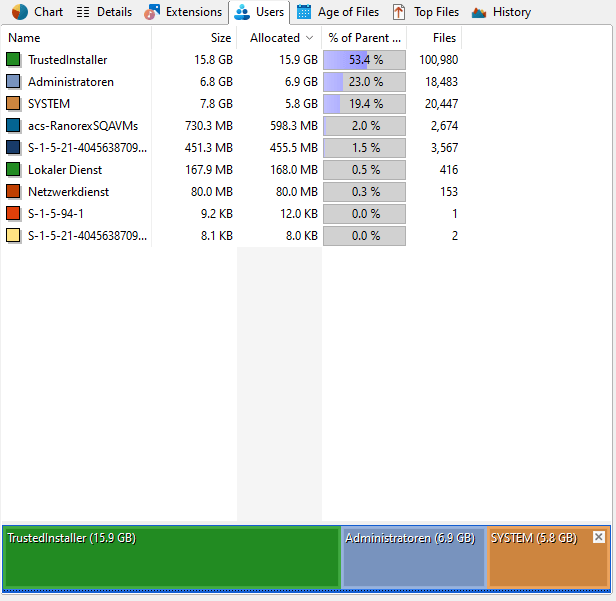
Context tab: Users
Use the "Users" tab in order to select specific information for viewing sorting the data. In addition to these filtering options, the tab also provides commands to export the list contents.

The following commands are available on the "Users" tab:
Show files of this user |
Show a list of all files that are owned by the selected user(s). |
Limit to this user |
Show only the files owned by the selected user. |
Clear filter |
Remove the user filter and show the complete file and folder information of the currently selected branch. |
Add column for this user to the Details list |
Adds a new column to the Details list, which shows how many files of the selected user exist within the current directory. |
Export Users |
Save the contents of this list to a file. If multiple items are selected, only the selected items will be saved. |
Send the content of the "Users" view via email. |
|
Copy to Clipboard |
Copy the content of this list to the clipboard. If multiple Items are selected, only the selected items will be copied. |
Print right pane |
Print the contents of this list. |
Select all |
Select all items in the list. |
Select none |
Unselect the list items. |
Invert selection |
Invert the selection. |
Show chart |
Turn on or off a chart that shows the distribution of file ownership. |
Additional columns
By right-clicking on the column header you can enable the following additional columns:
Full User Name |
The full name of the user, queried from Windows or Active Directory. |
User Comment |
The user comment from Active Directory. |
Quota Usage |
The usage queried from Windows quota management. To see values in the quota columns, you must run TreeSize as administrator and quota must be enabled on the local drive that you were scanning. |
Quota Limit |
The size limit that is set for the user in the Windows quota manager. |