

Discover TreeSize in Action
Want to see TreeSize in action? Take the visual tour to discover the many possibilities.
Main Program
Main Window
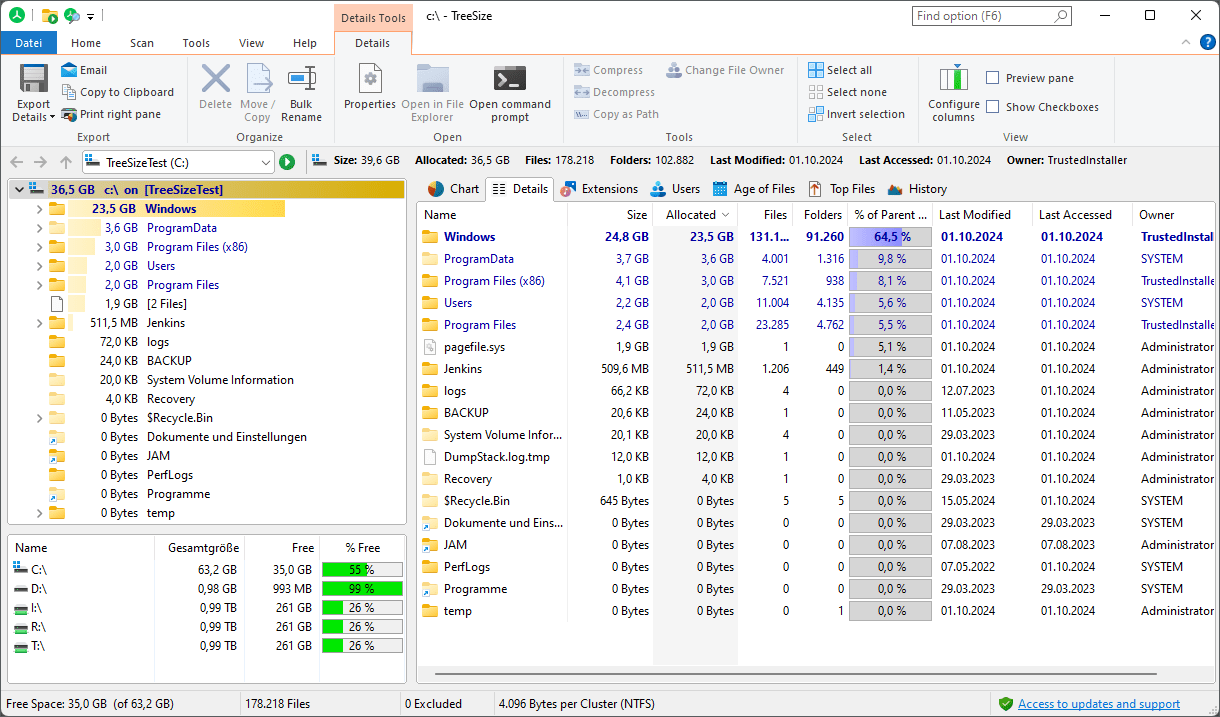
The main window offers a clear and easy to use interface which is split into the file system tree on the left and the details view on the right. An optional bar chart facilitates easy overview. While the scan is performed you can already browse through the constantly updating results list. Of course TreeSize supports Unicode file- and directory names.
Dark Mode
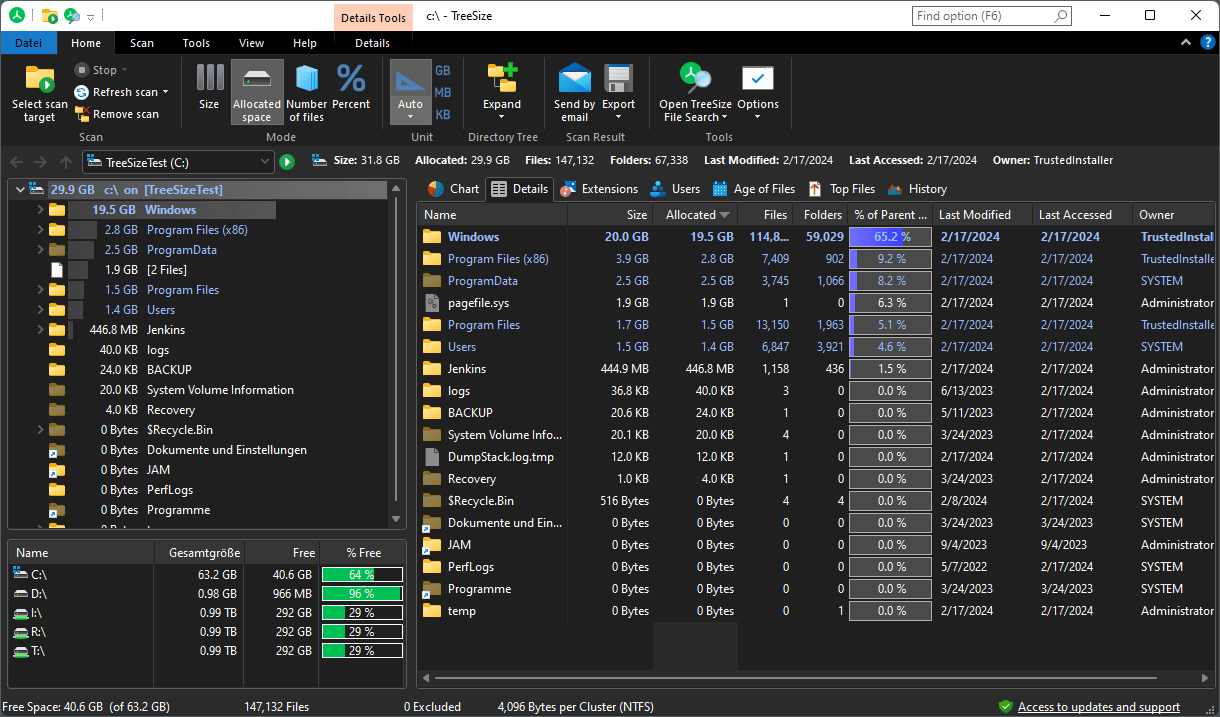
TreeSize comes with a Dark Mode that is a dark theme for the user interface. You can activate the TreeSize Dark Mode by linking it to the Windows theme configurations or toggle it on and off yourself.
Details View
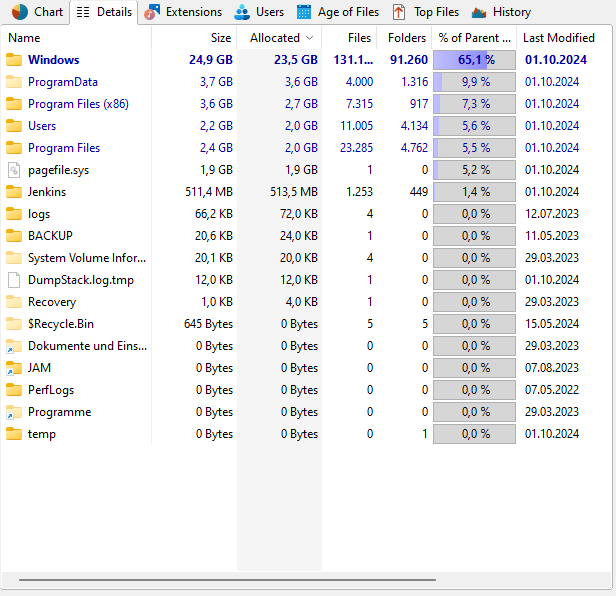
In the Details view you will find a lot of valuable information about the disk usage like the folder size, the disk space wasted due to the file system structure, the last access date, the NTFS compression rate and the owner. The list can be sorted by any column, additional columns can easily be added using the context menu.
Treemap Chart
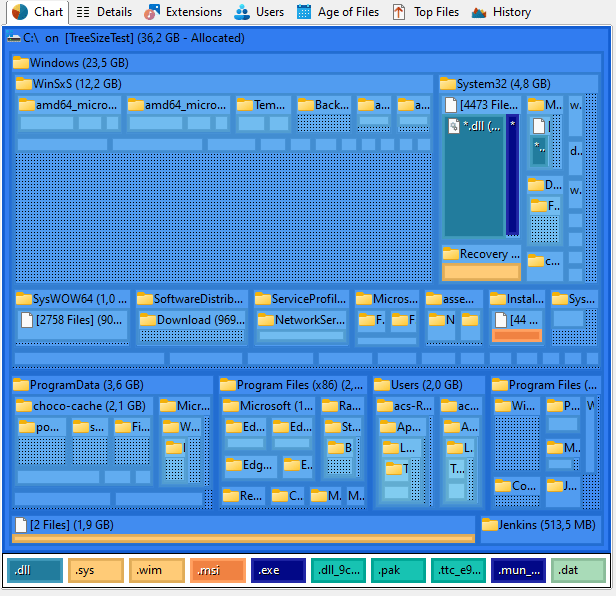
The treemap chart is a hierarchical chart visualizing the size of all subfolders (not only the direct child folders) of a selected directory branch. The tiles can be viewed in 2D (pictured) and 3D mode.
Bar Chart
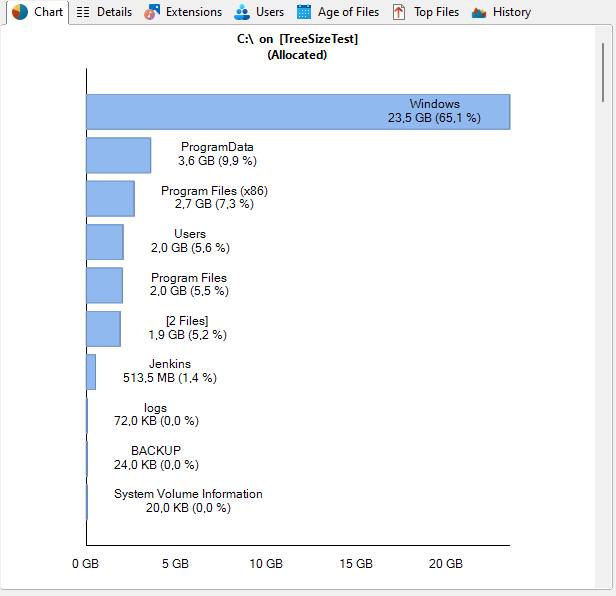
The bar chart provides a quick overview over the disk space usage. The chart can be printed or copied to the clipboard, the toolbar offers visualisation options.
Pie Chart
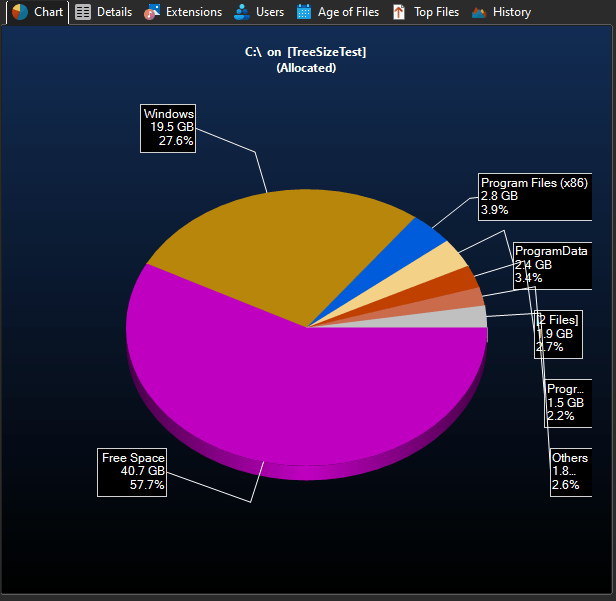
The pie chart shows the relative portions of each subfolder of the currently selected item in the Directory Tree.
File Extensions
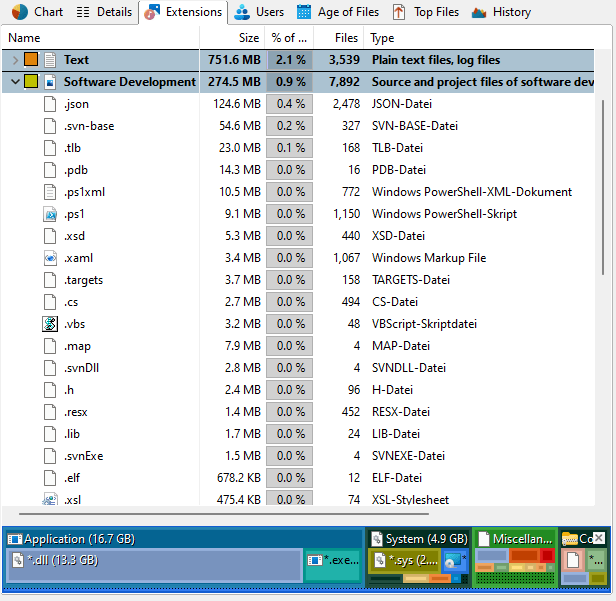
The used disk space can be broken down into file types. Filtering the file system tree on the left by certain file extensions will make it easy to find folders containing many of the particular file types.
Users
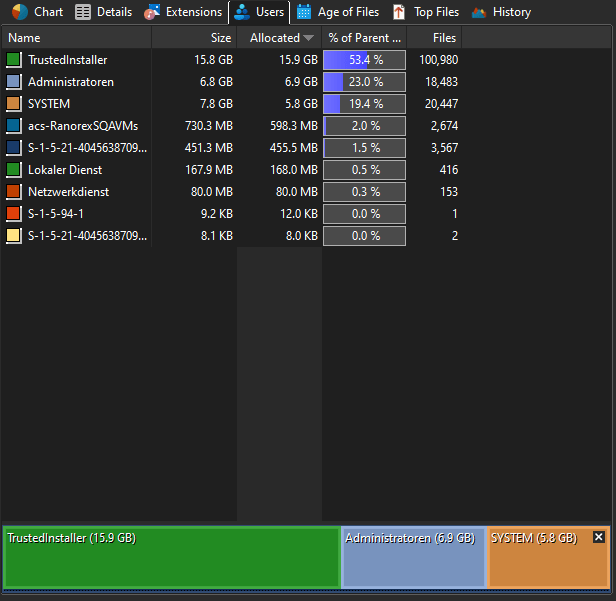
Used disk space can also be grouped and filtered by users. This way you can easily see which user accounts occupy the most disk space.
File Age
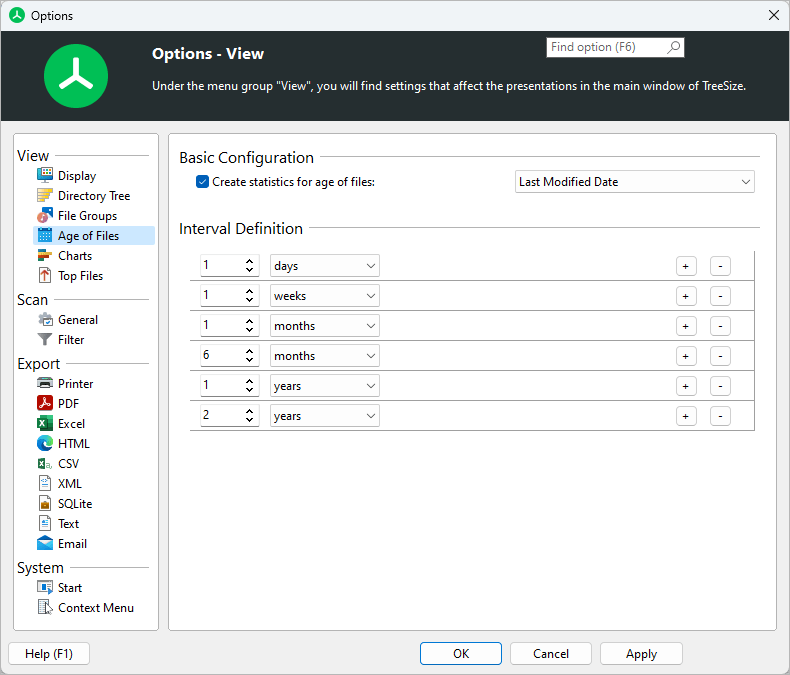
TreeSize enables you to sort files by file age. Intervals can be configured for "creation date" , "last change" and "last access".
Top Files
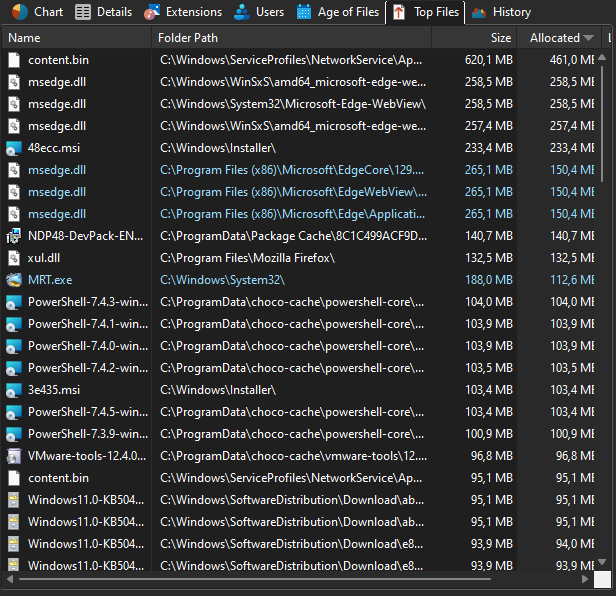
The Top Files pane provides an overview about the largest files found during the last scan.
Configuration
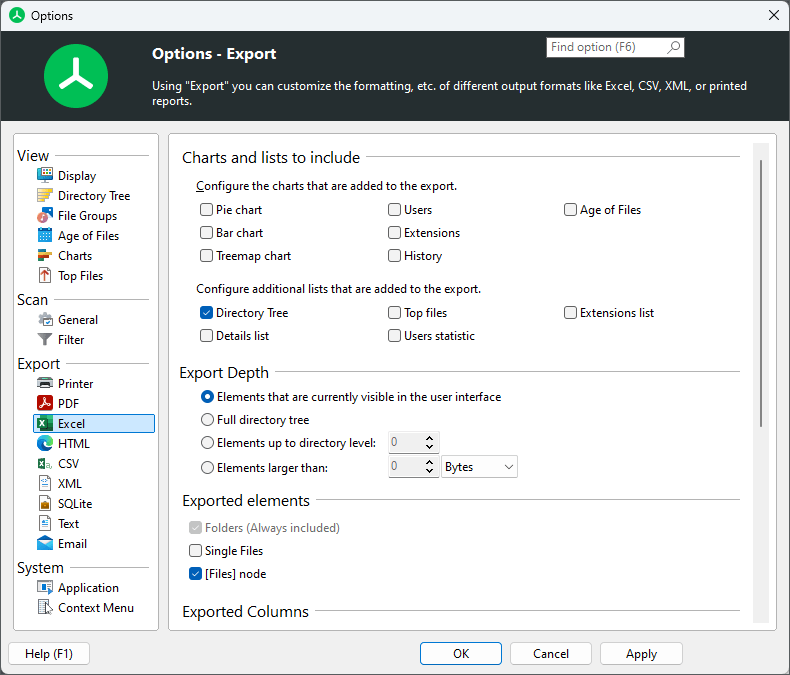
Many aspects of TreeSize can be configured in the options dialog, e.g. the view, the export of data or startup options.
Report Comparison
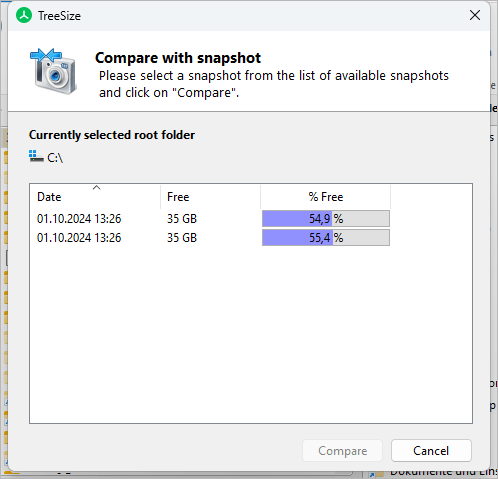
TreeSize enables you to save file system branch information to an index file or to take a snapshot of the disk space usage at a certain point in time. To monitor disk space usage development you can compare the results of different measurements.
Task Scheduling
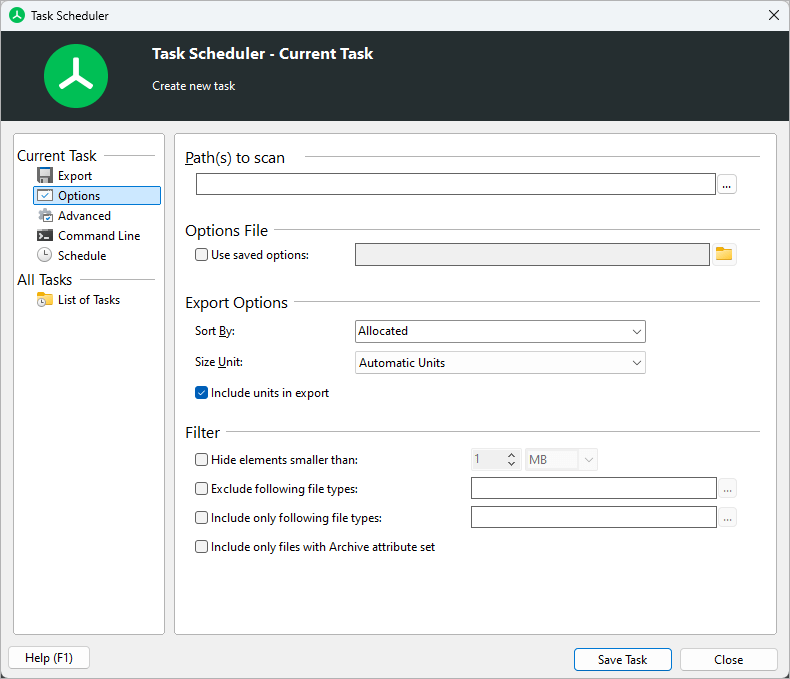
In the Professional Edition "Schedule Tasks" dialog you can now add customized TreeSize Tasks to the Windows Scheduled Tasks.
Please note: This feature is available in the Professional Edition only.
File Search
File Search
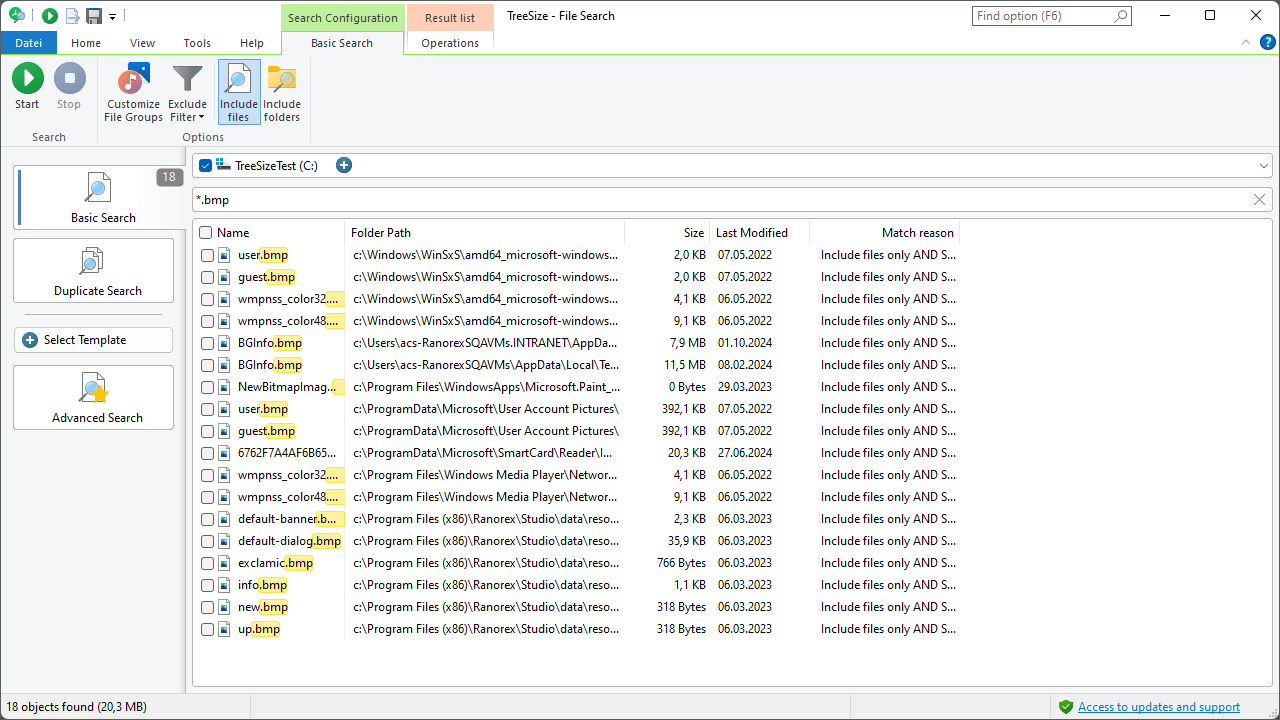
The TreeSize file search helps you to find obsolete and very large files. The particular search types can be configured in detail and certain files or folders can be easily excluded from the search results - for instance recently changed files.
Custom File Search
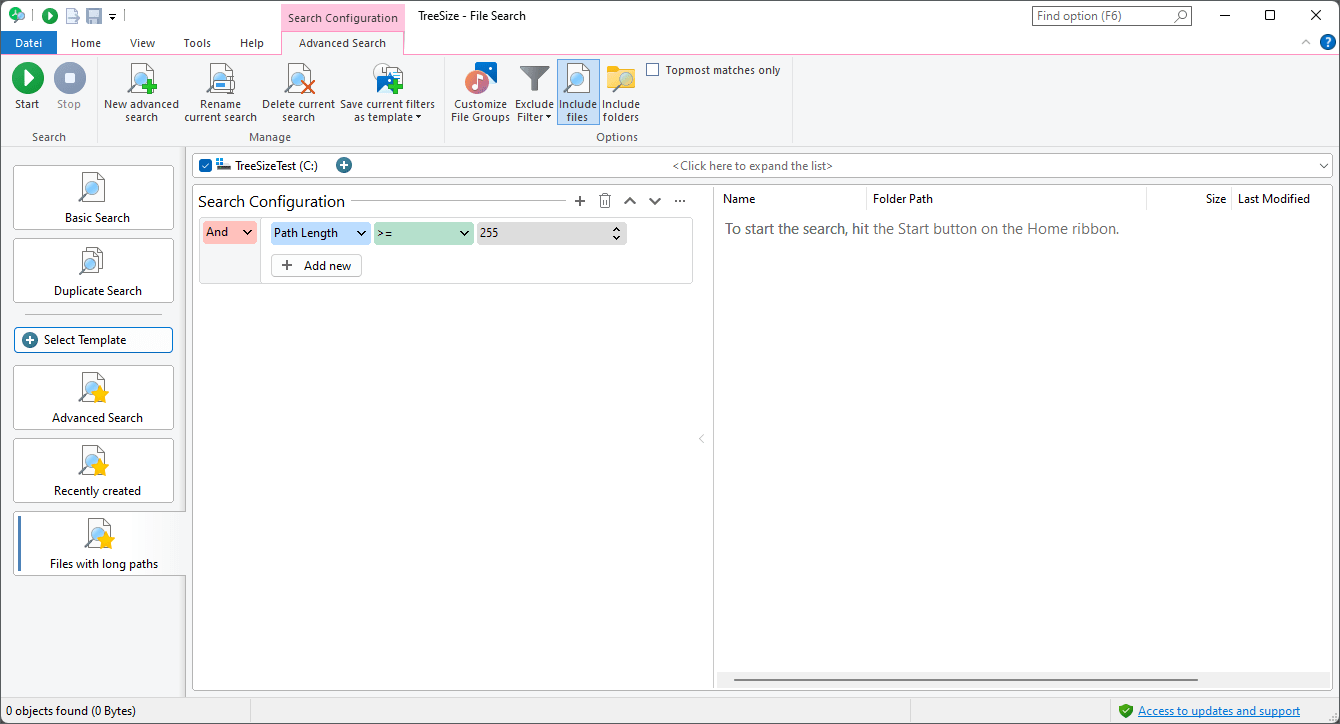
The TreeSize File Search is a powerful tool for searching files on multiple drives, entire servers or even your entire network neighbourhood.
Custom File Search provides you with several options for a detailed file search. You can flexibly configure the search to your needs, using file names, sizes, dates, attributes and users as parameters for your search.
Search Templates
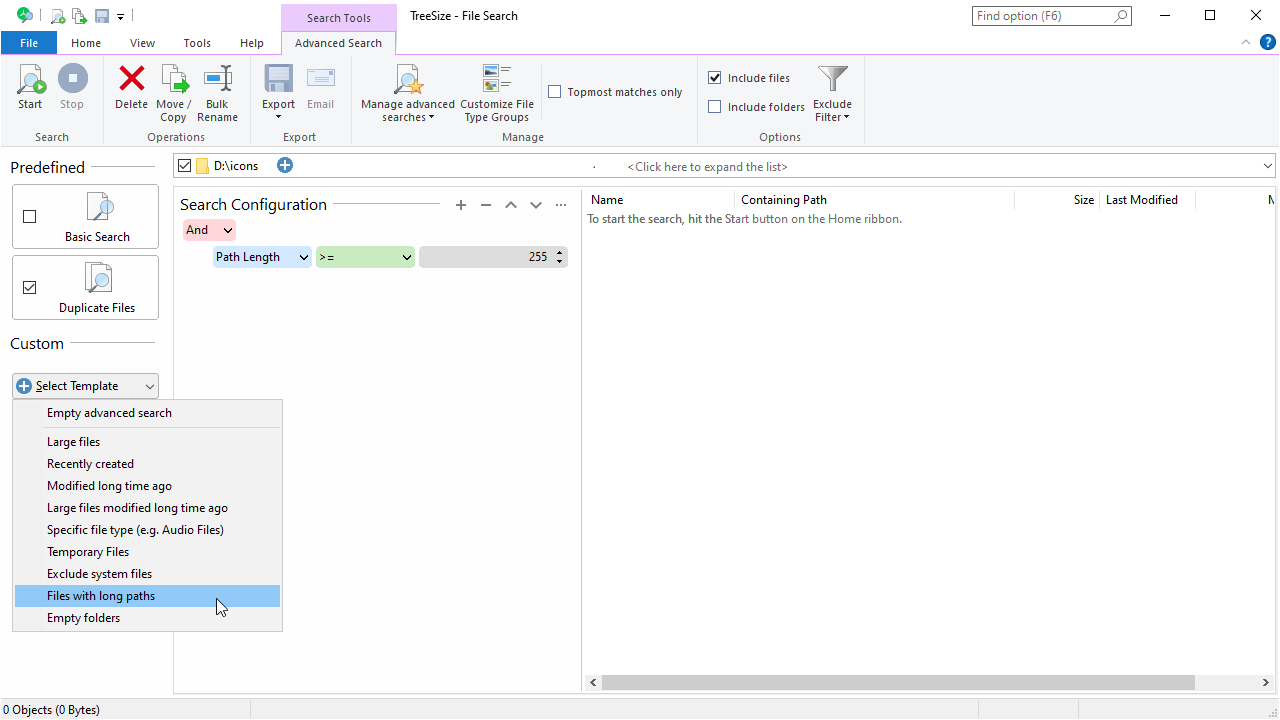
TreeSize provides several search templates for typical tasks. Use them out-of-the-box or as starting point for own, more specific searches.
Duplicate File Search
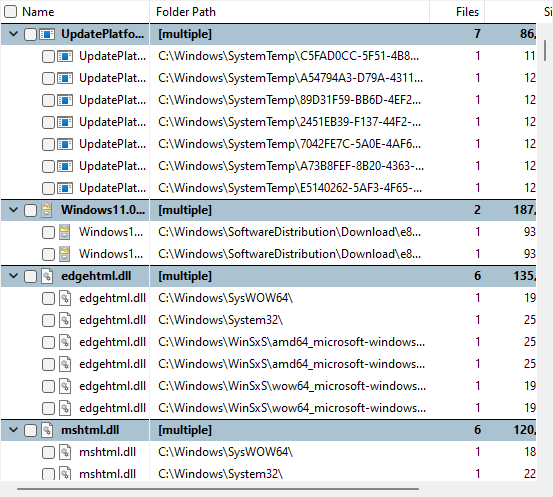
The search for duplicates of TreeSize makes searching for identical files easy. Duplicate files waste hard disk space. TreeSize provides a specialized duplicate search and enables you to remove duplicate files or to deduplicate them. How does this deduplication work? Duplicate files can be replaced with NTFS hardlinks.
Long Path Names

TreeSize also supports path names that are longer than 255 characters. By means of the custom file search, you can easily find and move or delete these long paths.
File Search Options
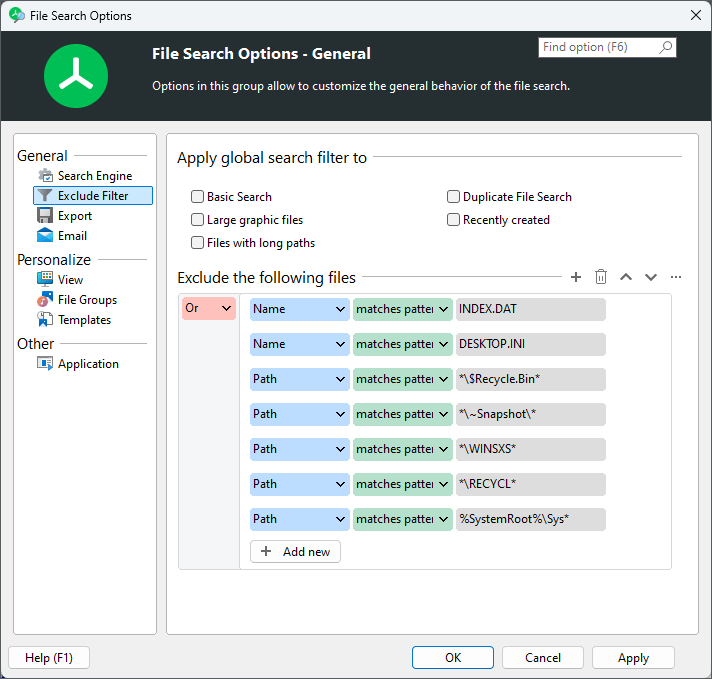
The different types of searches can be configured in detail, e.g. for excluding certain file types or recently changed files from the search.