


Execute File Operations On Multiple Files
Do you want to process multiple files at once? TreeSize can execute various file operations on your scan results or search results list.
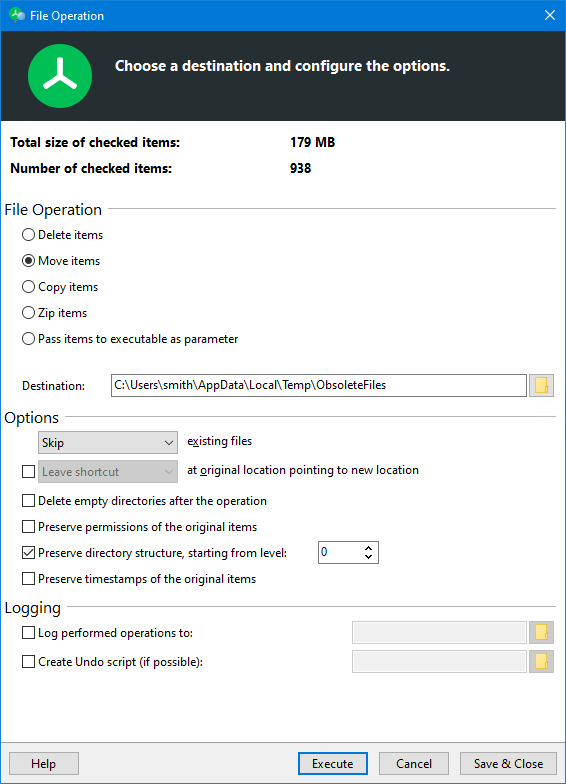
What file operations does TreeSize offer?
- Move files to a different location under preservation of certain parts of the path.
- Copy files to any location - this feature is very handy for a SharePoint migration for example.
- Delete checked files or move them to the recycle bin.
- Archive the files in the ZIP format.
- Define your own scripts and pass the checked results list as parameter to them, to perform any desired operation.
TreeSize can create a log file as well as an undo script for each operation.
What makes the TreeSize file operations so special?
Unlike other tools, TreeSize can preserve the directory structure, time stamps or NTFS permissions when moving or copying files if necessary. This helps to maintain the logical structure of the data and ensures permission-based functionality - as well as helps to preserve well-established workflows.
In addition, you can leave symbolic links (NTFS hardinks) in place of moved old files, enabling other users to access them in their new location.
Rename multiple files at once
Are you having trouble with outdated, too long or illegal file names in your folder structure? TreeSize can rename multiple files in a bulk with just a few clicks.
Show transcription
[On Screen: Intro: the TreeSize Professional logo over an image of a hard disk, with the tagline “Bulk rename files easily and efficiently”.]
Rename a whole bunch of files at once with the Bulk Rename feature of TreeSize Professional. In everyday business, it can happen again and again that several files need to be renamed. Especially when it's not just a few documents but dozens, this simple task can suddenly take a lot of time. With TreeSize's Bulk Rename feature, you can complete this task in no time.
[On Screen: TreeSize Professional in the Details view; the files to be renamed are selected in the list via checkboxes.]
First, use TreeSize to scan the drive, or even the specific directory, that contains the files you want to rename. Select the files, either by checkbox or with the Shift + mouse-click shortcut, and then choose the Bulk Rename option under the Details tab.
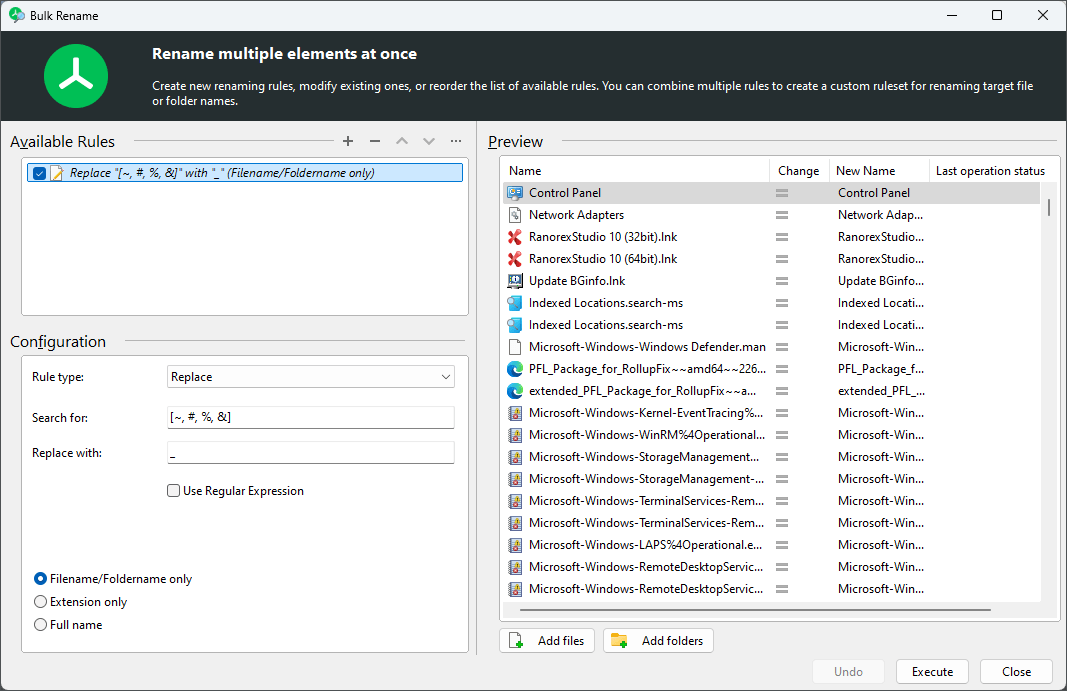
[On Screen: The “Bulk Rename” dialog (“Rename multiple elements at once”) with a list of available rules and a Configuration area (rule types such as Replace, Delete, Insert and Number), plus a live preview of the new names.]
TreeSize gives you the most important rules directly to choose from. Do you want to find and replace text? Paste text? Number files, or delete text in the file name? Set as many rules as you need for your task.
[On Screen: On-screen note that more and more companies move their file systems to Microsoft SharePoint, where file names must not contain certain special characters (such as # % - & * ? { } : < > / |).]
Here's a popular use case. More and more companies are moving their file systems to Microsoft SharePoint. To do this, all files to be moved must be prepared. For example, files must not contain certain special characters like the percent sign. Large file systems can contain thousands of files that violate this rule. Renaming them manually would take an extremely long time.
[On Screen: The TreeSize Advanced file search with a search rule “Name matches regular expression”, using a regex for the forbidden characters to find and select the matching files.]
First, use the TreeSize file search with this regular expression to search for files with the corresponding special characters and select them.
[On Screen: In the Bulk Rename dialog, a “Replace (regular expression)” rule is configured with the same regex and an empty replacement (or an underscore); the preview on the right shows the cleaned-up new names.]
In the Bulk Rename, select Replace as the rule type and use the regular expression again. In the “Replace with” field, specify an underscore or an empty string. After adding the rule, check your job in the preview on the right side of the screen. Finally, just click Run, and your files are ready to be moved.
[On Screen: Closing screen with the JAM Software logo.]
With TreeSize, you can rename as many files as you like in one swing. The Bulk Rename function is easy-to-use and offers several operations for modifying names:
- Replace text, optionally by using a regular expression.
- Insert the selected text as a prefix, suffix or at a specific position.
- Serialize the file names.
- Delete a certain text within the filenames or any text at a certain position.
A preview allows to see which renaming operations effectively is going to be performed, which prevents errors.
Perform scheduled file operations
Do you want to save even more time? Why not automate file processing!
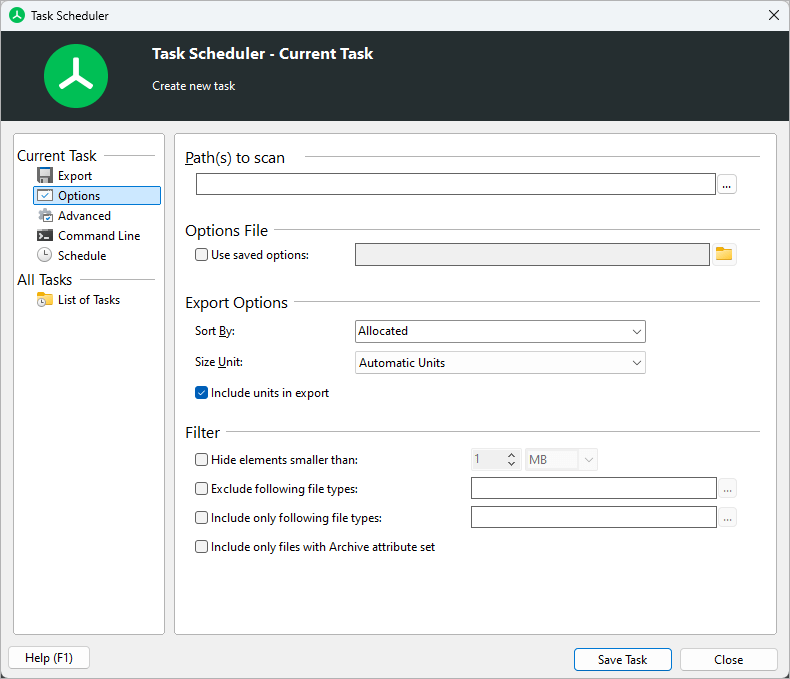
With TreeSize, you can schedule file operations as well as system scans and file searches as a Windows task. This allows to carry out recurring tasks like archiving or renaming certain files automatically and in regular intervals.
Different editions to fit all needs

TreeSize Personal