


Analyzing Storage Changes Over Time
TreeSize shows you immediately where space has been lost on your storage and is analyzing where you have gained new space.
Simply compare your current scan with a previous point in time.
Show transcription
[On Screen: Title slide “Analyzing Storage Losses Over Time”, followed by a slide “Understanding Storage Space Losses” with the points “Analyzing storage loss” and “Comparing with previous state”.]
Analyze storage losses over time with TreeSize. With TreeSize, you can see at a glance where space has been lost on your storage. Compare your existing storage space with a previous point in time. This allows you to take action and reclaim storage capacity. Automation is also possible.
[On Screen: The TreeSize comparison view: on the left, a directory tree with a delta column showing growth/shrinkage per folder; on the right, a breakdown by folders and file types with a chart. Caption: “Visualize storage changes and identify folders/files/users.”]
Use the comparison function to visualize changes in your storage. On the left, you can see at a glance in the delta where and how much capacity has been lost. On the right, you can see exactly which folders or file types are involved. The columns can be easily switched on and off, so you can clearly see where storage space has been lost, or which user has taken up a particularly large amount of space.
[On Screen: TreeSize showing the snapshot comparison, listing the Windows Volume Shadow Copy snapshots available for the drive. Caption: “Use all existing snapshots for comparison (also possible retroactively).”]
TreeSize offers two options for a storage comparison, namely a comparison with an existing Windows snapshot and a comparison with a stored index file. TreeSize offers immediate help with the snapshot comparison: compare with all snapshots that Windows provides for the respective storage. This is where you can easily see where, for example, more space has been used since last week.
[On Screen: A “TreeSize Export” save dialog for storing a scan as an index file. Caption: “Or: Save scan in an index file and refer to it for later comparison.”]
Do you want to keep an eye on your storage capacity for a longer period of time? Then save your storage scan in an index file. Load it in at a later time and compare it with your current status.
[On Screen: Slide “Automating Process”, then the TreeSize “Task Scheduler – Current Task” dialog where a schedule interval is set and an index-file export is configured. Captions: “Plan a scan and let TreeSize create a measuring point automatically.” and “Automation is also possible with command line parameters!”]
Really practical: you can also set up scheduled scans to have even more points of comparison. To do this, set a schedule to repeat your current scan. TreeSize can automatically save an index file at the desired location after a scan. This way you have enough measuring points ready to be prepared for anything. Good luck with your cleanup.
Visualize storage changes
With the compare feature, you can easily see changes in your storage memory. TreeSize shows you which folders have grown and which have become smaller since the last scan.
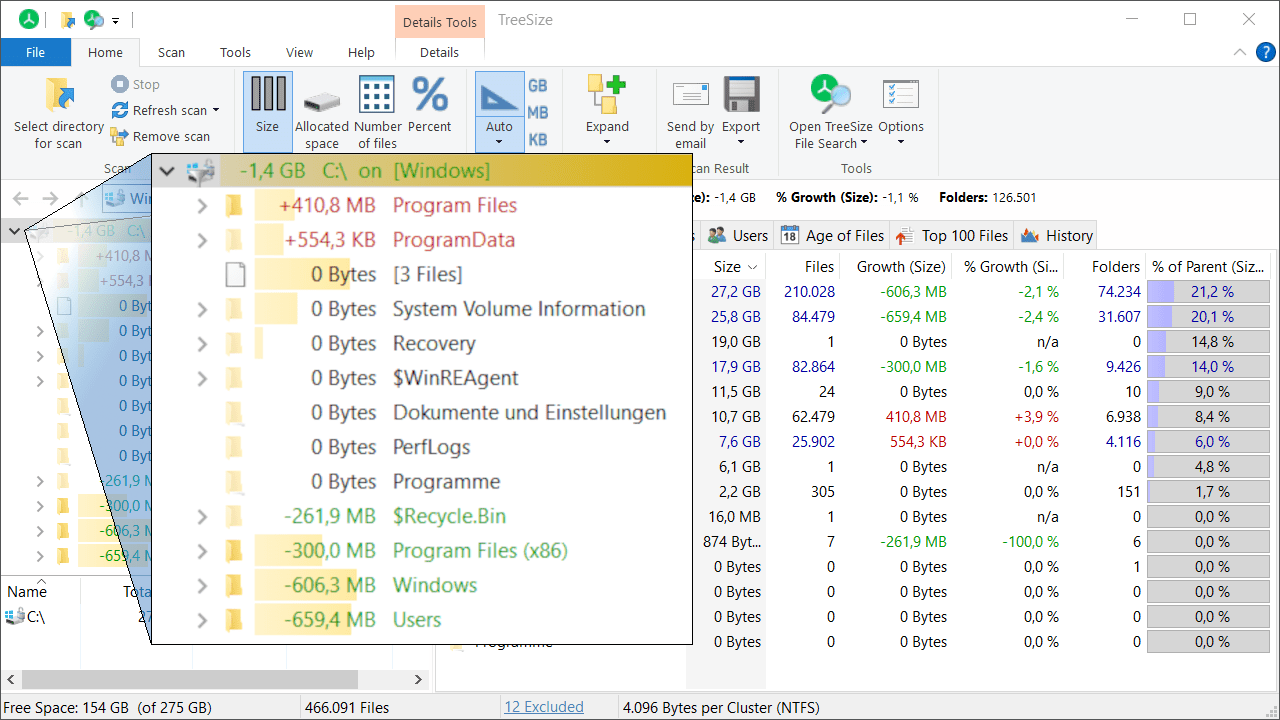
The detail columns give you information about absolute and relative increases. You can see exactly which folders are now taking up more space than before - and how many files are in them.
In the other tabs, you can trace storage losses to specific file types or see which users are now taking up more space.
Immediate help: Compare with Windows snapshot
Is your storage suddenly full and you need to quickly find out where it has become more? TreeSize can access your existing Windows snapshots (often called "shadow copies" by Microsoft) and compare them to your current storage space.
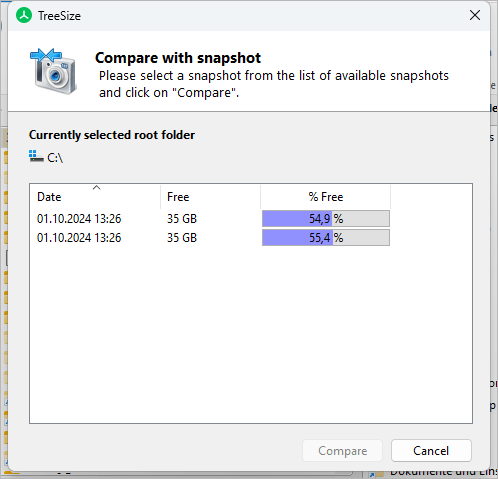
Select an existing snapshot under "Scan -> Compare with snapshot". TreeSize scans the snapshot immediately and shows you all size changes.
By the way: If you have older Windows snapshots, you can also compare them with a time when you did not have TreeSize installed. Otherwise you can simply create them with TreeSize.
Observe storage changes long term
Want to be able to see how your storage is changing over the long term? Save your current scan as an index file under "Scan -> Compare with saved scan" and store it securely. Reload a saved scan at a later time and compare it to your current storage.
You can automate this process with a scheduled scan. To do this, simply check the box for index file under "Export" in the task scheduler and define a storage location.
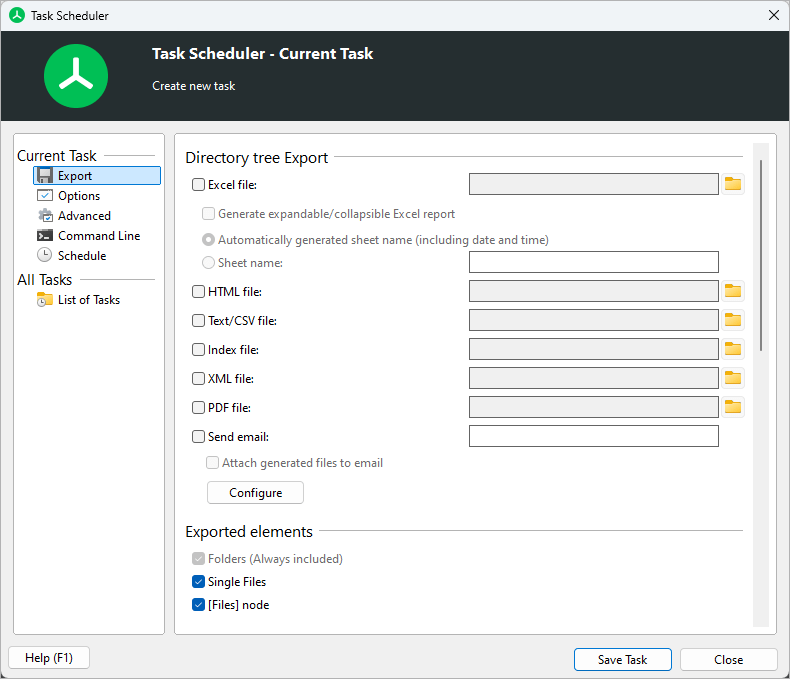
TreeSize automatically saves the scheduled scan after execution. This allows you to create as many measurement points for your analysis as you like.
Would you like to keep an even better eye on your storages? With SpaceObServer you can continuously monitor storage changes based on the database - so you can prevent your server from filling up at an early stage.
Try TreeSize yourself
You can try TreeSize yourself with our free 30-days trial!

TreeSize Personal