


Search faster, clean up more safely
What’s new in TreeSize 9.9

Defining a search target, reviewing results, selecting the right files: if you use TreeSize regularly, these are probably tasks you perform all the time. And the more often you do something, the more every click matters.
That is why, with TreeSize 9.9, we have thoroughly redesigned two of these functions: selecting your search targets and choosing the right files in your result lists. Both are now noticeably faster, clearer, and safer. In addition, there are several other improvements that will hopefully save you time and effort in many situations.
New path input: Reach the right search target in just a few steps
Every search starts with the same question: where should TreeSize search? Until now, the answer often took more clicks than necessary. We changed that.
When you open the path input in File Search, you will now see not only your favorites and recently searched paths, but also all drives connected in Windows Explorer. This includes local hard drives, network drives, and cloud services, each shown with its name and free disk space. You can select multiple drives just as you would in Explorer and add them all in one step.
Search targets you need again and again can simply be pinned. The next time you search, they are immediately available. The new search history also shows what you searched most recently and can be cleaned up if needed.
Selected paths appear as individual items in the path bar. This lets you see at a glance where TreeSize will search and remove a path directly from its item with a single click.
One rather subtle improvement was especially important to us: TreeSize now marks drives and paths that are currently unavailable before you even start the search. This saves you from searches that would otherwise lead nowhere—for example, because a network drive was not connected.
By the way: The entire path input can be operated by keyboard. A click selects a path; Ctrl+click or Shift+click lets you select multiple paths. You can remove selected paths with Delete or Backspace. To edit a path, simply click it a second time or press F2.
New selection logic: Choose the right files, keep the right ones
Anyone cleaning up duplicates—that is, files that exist more than once—eventually faces an important decision: which copy should stay, and which one should go? From our conversations with customers, we know there is a clear preference: “Show me what belongs together and what can go. I’ll decide what to delete myself.”
That is exactly what the new selection logic is designed for. TreeSize prepares the selection, but the decision remains yours. Instead of clicking through long result lists, you define rules that determine which files are selected.
We completely redesigned the selection dialog for this purpose. Frequently used selections are available directly from the ribbon menu. More specific selections can be defined in the new dialog and saved for later use.
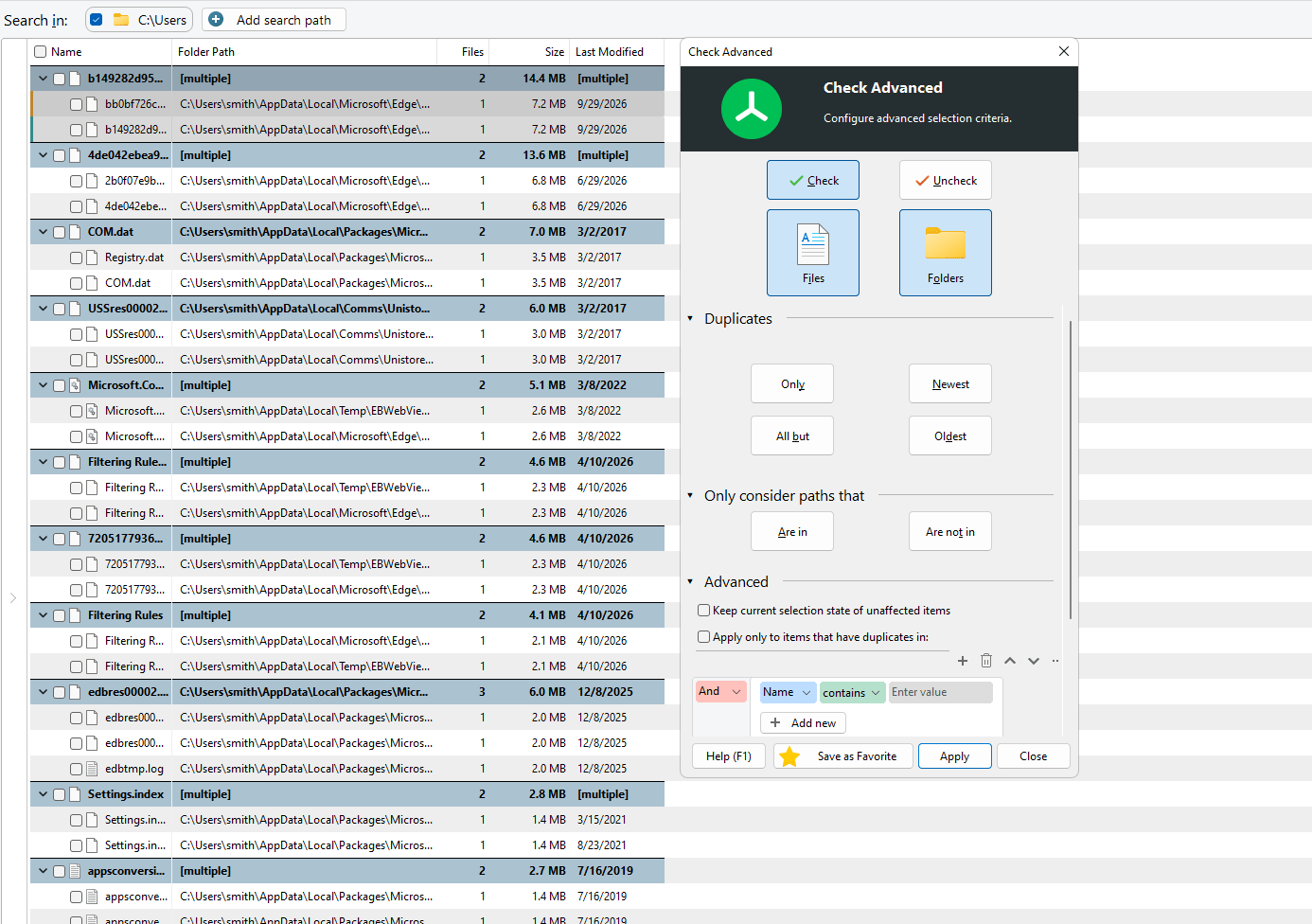
For example, imagine your original files are stored in an archive folder, while copies are scattered across different drives. With the new selection logic, you can specifically select only the files that are not located in the archive folder. The originals remain untouched, and only the copies in other locations are selected. Of course, this works the other way around as well.
For more complex requirements, you can create your own custom rule set using the advanced selection options.
For example: select all duplicates that are not in the archive folder and are older than one year, while always keeping the newest copy.
By the way, the selection logic is not only available in Duplicate Search, but also in the regular File Search.
JAMie directly in TreeSize
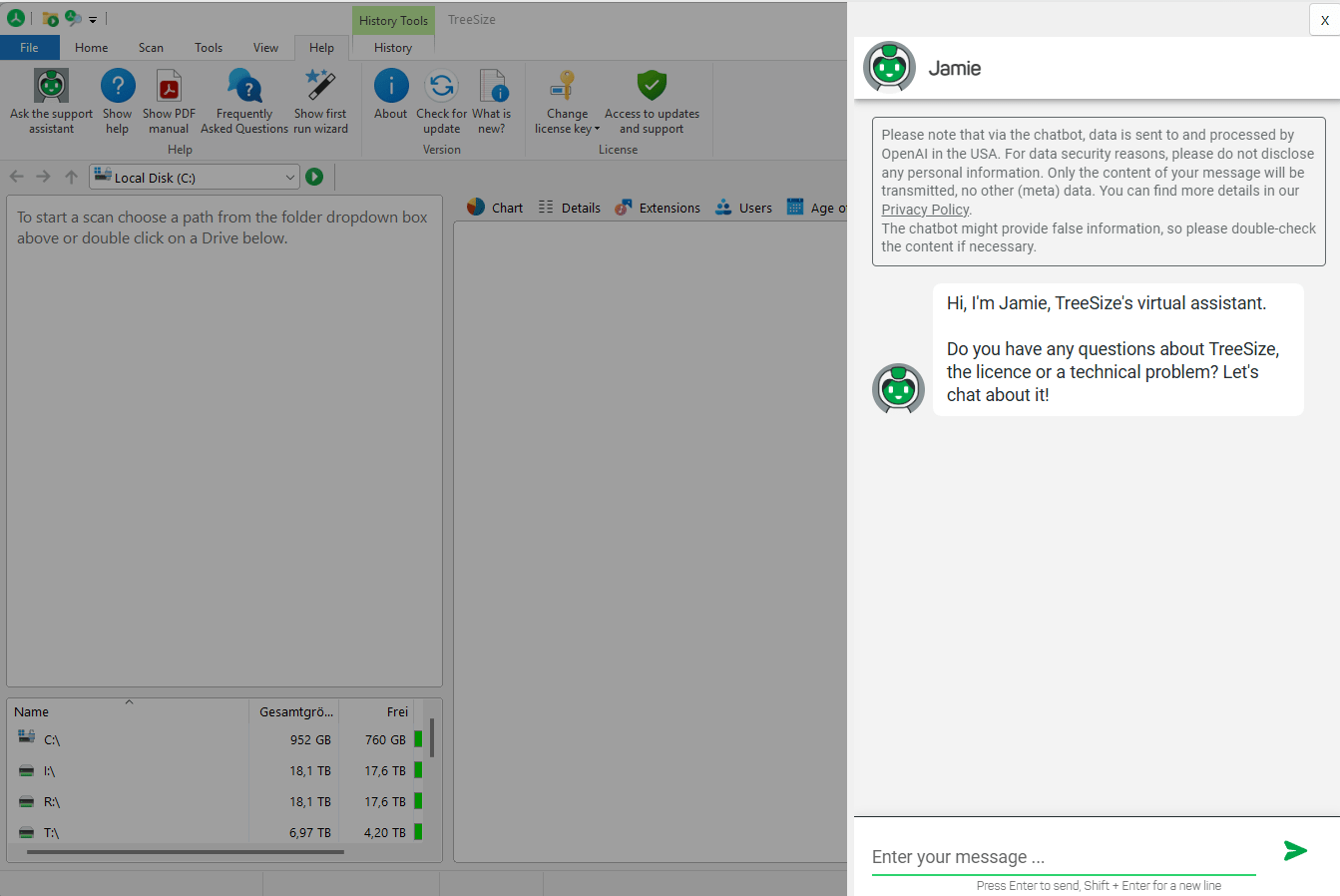
We have integrated our chatbot JAMie directly into TreeSize. If you have a question about using the application, you can now ask it right where it comes up, without leaving the program. JAMie draws on the combined knowledge of our documentation and many years of support experience.
Transparency is important to us: JAMie cannot see your screen and has no access to your scan data.
Two file previews side by side
The file preview can now display two files at the same time if you want. This allows you to compare contents directly—for example, when you want to check whether two similar files really contain the same information.
You can activate the second preview using the new pin icon in the file preview or via the corresponding checkbox in the ribbon. In addition, the preview now appears only when a file is selected. This leaves more space in the right-hand pane.
What else has changed
- File owners can now be set recursively for an entire folder.
- For exports in SQLite format, you can now define the level of detail just as with other export formats. For example, if you omit information about individual files, the export becomes smaller and can be processed more quickly.
- The TreeSize setup now appears in a new, modern design.
What’s next
With TreeSize 9.9, our work on usability is not finished. We are already planning many further improvements to make your everyday work with TreeSize even easier.
At the same time, we are looking closely at how we can bring TreeSize closer to the possibilities of AI—in a way that creates real value for you while keeping your data secure. One thing is already certain for us today: the decision over your data remains yours.
We look forward to your feedback on TreeSize 9.9. Feel free to write to us at treesize@jam-software.com and tell us what you like and what you would like to see even more of.
You can find all new features and bug fixes in detail in the full changelog for TreeSize 9.9.