


How To Find Duplicate Files
Find Duplicate Files with TreeSize Duplicate Search and Reclaim Disk Space

Your file server reports 95% capacity, backup windows keep growing, and the next migration is just around the corner. You know that hundreds of gigabytes of unnecessary data are lurking somewhere. But where exactly? And what can safely be deleted?
In many organizations, duplicate files are one of the biggest yet most overlooked storage hogs. They accumulate gradually and spread across dozens of folders and drives. The consequences range from unnecessary storage costs and inconsistent data to compliance risks.
We show you why duplicate files are a serious problem, where they come from, and how the improved duplicate file search in TreeSize v8.9 helps you identify and remove them in a controlled way.
The Underestimated Problem: Why Duplicate Files Are More Than Just Wasted Space
Duplicate files are often dismissed as a cosmetic issue: annoying, but not critical. In reality, however, they cause tangible problems that go far beyond storage consumption alone.
Storage Costs That Add Up
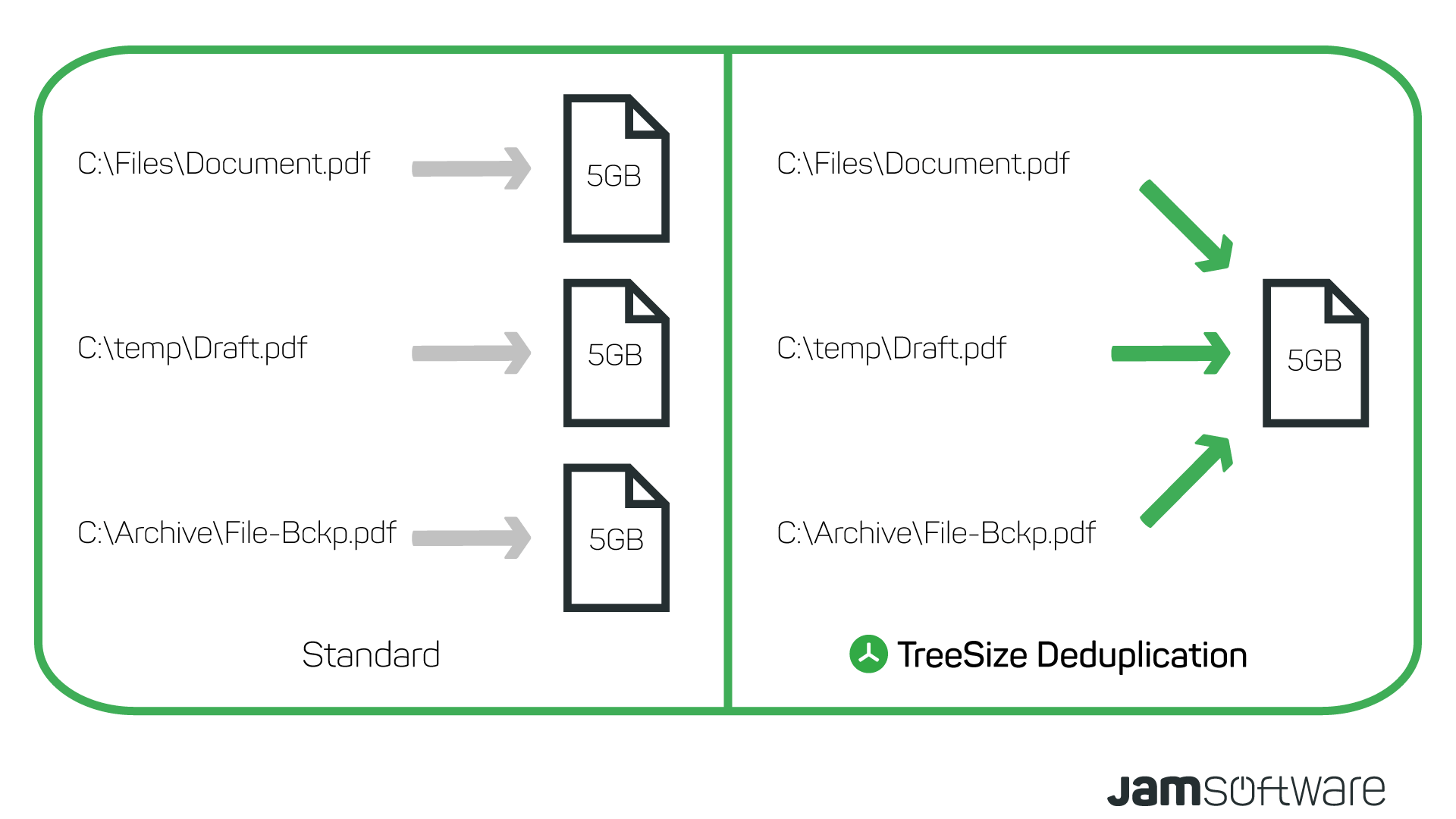
Every duplicate occupies disk space that would not otherwise be needed. If each of the 500 employees in a company has an average of 2 GB of duplicate files on the file server, that already amounts to one terabyte of redundant data.
This terabyte is not stored just once: it flows into every backup, takes up space on replication targets, and drives up the monthly bill when cloud storage is involved.
The impact is especially noticeable for organizations that rely on cloud storage. Every gigabyte sitting unnecessarily in SharePoint, Azure Blob Storage, or Amazon S3 incurs ongoing costs.
And for backups, the equation is simple: more data means longer backup times, larger backup windows, and higher costs for storage media.
Risks to Data Quality and Compliance
Even more problematic than the costs is the question: Which version of a file is the correct one?
When the same document exists in three different folders, possibly with slightly different content, there is no Single Point of Truth: a single, authoritative version that everyone can rely on.
Employees work with outdated copies, decisions are based on incorrect data, and during audits it becomes impossible to determine which document is the valid reference.
For regulated organizations, the problem is even more acute. The GDPR requires that personal data be deleted upon request.
If the same file is stored in five different locations, removing just one copy is not enough. Anyone who cannot ensure that all copies are identified and deleted risks uncomfortable questions during audits.
How Do Duplicate Files Occur?
Duplicate files rarely appear on purpose. In most cases, everyday workflows lead to a gradual buildup of data redundancy over weeks and months.
Copying Instead of Linking
The most common cause is deceptively simple: files are copied instead of linked. Someone needs a template for a new project and copies it into the project folder. Another person does the same.
A concrete example: a construction company organizes its projects in subdirectories and stores the relevant PDF files with specifications and standards in each one.
Many of these PDFs are needed across projects and are therefore copied into every project directory. Over time, this results in hundreds of gigabytes of true duplicates.
Sync Conflicts, Backups, and Downloads
Cloud synchronization services like OneDrive or Dropbox create so-called conflict files when documents are edited simultaneously. These files often remain permanently in the file system.
Manual backup copies created before making changes are rarely deleted after the work is done. And the downloads folder is a typical collection point: anyone who downloads a file multiple times ends up with copies named File (1).pdf, File (2).pdf, and so on.
Lack of Version Control
Without a centralized version control system, employees resort to a familiar workaround: they save new versions under a new file name.
The result is files like Concept_v2.docx, Concept_final.docx, and Concept_FINAL_2.docx. These often differ only minimally in content but each occupy the full amount of disk space.
Instead of a Single Point of Truth, multiple competing versions exist, and nobody knows which one is current.
Why Manual Cleanup Fails
Windows Explorer offers no duplicate file search functionality. You can sort files by name, size, or date, but there is no automatic comparison of file contents.
Even if two files share the same name, that says nothing about whether they are identical. With a dataset of 100,000 files, a manual comparison is simply not feasible.
Even more dangerous is hasty deletion. Anyone who cleans up without the right tool risks removing the wrong copy. In enterprise environments, files are often referenced by shortcuts, scripts, or applications.
If someone deletes a file that another process depends on, errors can occur that only surface days later.
TreeSize Duplicate Search: Find Duplicates and Remove Them Safely
This is exactly where TreeSize comes in. As an all-in-one solution for professional file and disk space management, TreeSize offers a powerful duplicate file search that identifies duplicate files based on their actual content.
The duplicate file search is available starting with TreeSize Personal and is also included in TreeSize Professional.
What the Duplicate Search Can Do
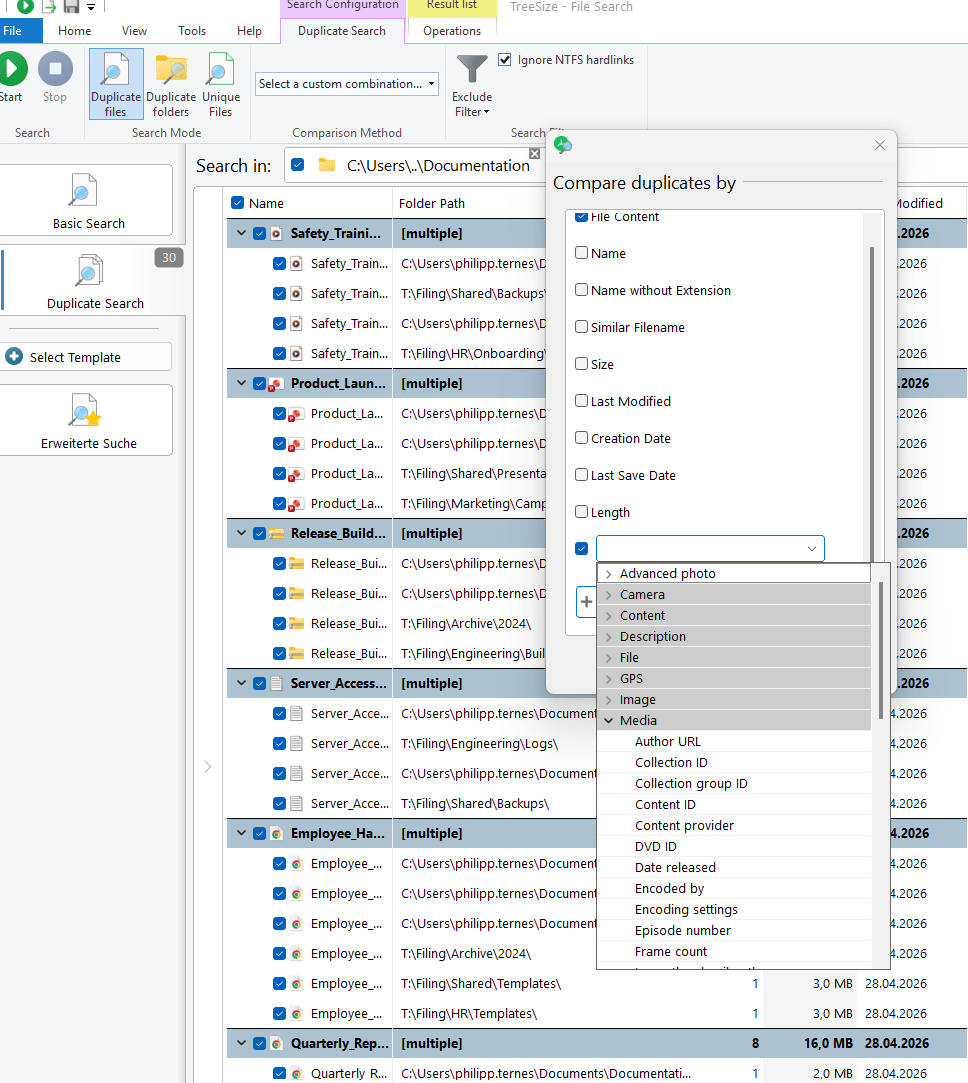
The duplicate search scans any number of drives and storage locations simultaneously, comparing files based on file name, file size, or metadata.
There is also the option to compare files using cryptographic checksums (MD5 or SHA256). With this approach, two files are only considered duplicates when their checksums match, meaning their content is byte-for-byte identical.
This method is significantly more reliable than comparisons based on other criteria.
This method is significantly more reliable than comparisons based on other criteria.
The Workflow in Practice
A typical duplicate search with TreeSize follows four steps:
Select scan targets: Open the TreeSize file search and select the “Duplicate Files” mode. Use the plus icon to add additional file systems.
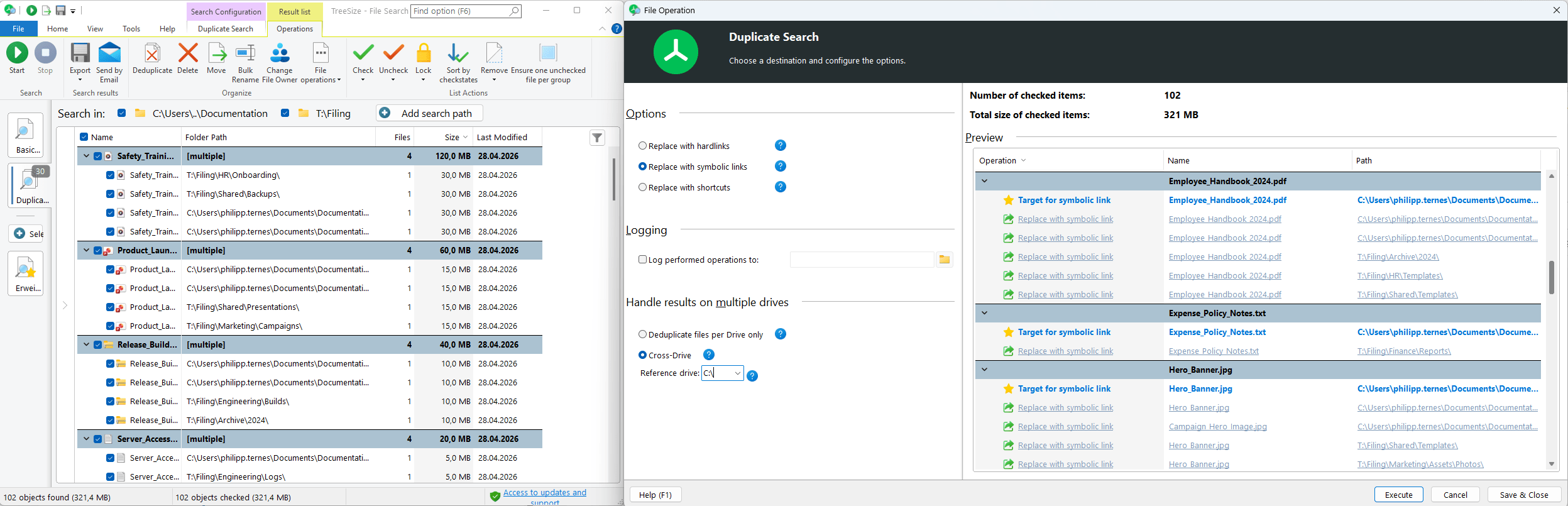
Optionally, you can designate a reference drive: files on this drive are automatically treated as the primary copy and are preferentially retained during deduplication.
Configure filters: For example, exclude files below a certain size to focus on the most significant storage consumers. Specific file types or system folders can also be excluded from the search.
The advanced filter options offer auto-completion suggestions, allowing you to configure filters more quickly.
Analyze results: TreeSize lists the duplicates found in a clear overview, showing the full path, size, and number of copies for each file. Sort by size to immediately identify the biggest space wasters.
Additionally, results can be filtered by column, so you can narrow down by specific paths, file types, or size ranges even after the search is complete.
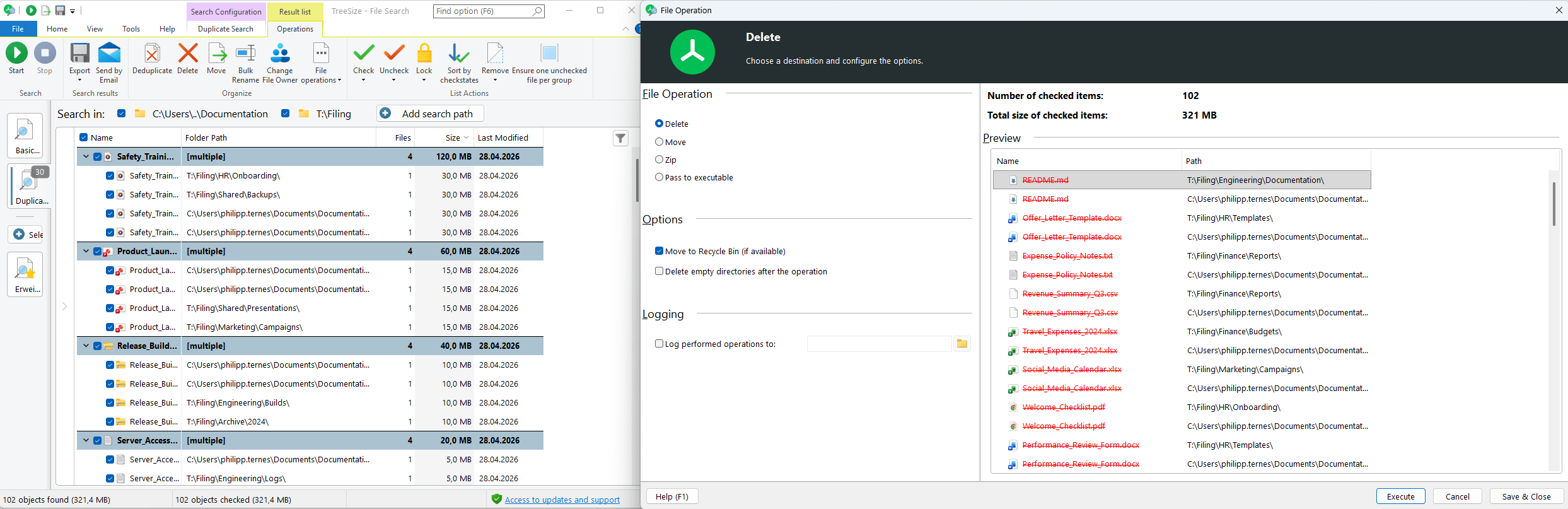
Remove or deduplicate: TreeSize offers two approaches: the classic method of deleting redundant copies, or deduplication via links, where duplicates are replaced with references to a single physical file.
Before every operation, a preview dialog displays the planned changes: you can see which file will be retained as the primary copy and which copies will be replaced or deleted. Color highlighting and tooltips make it easy to understand the impact at a glance.
Deduplication: Three Link Types for Maximum Flexibility
Deduplication via links is a particularly elegant way to free up disk space without breaking file paths. In version 9.8, TreeSize offers three link types that can be chosen depending on the use case:
- Hardlinks are additional directory entries that point to the same physical file on disk. After deduplication, the file exists physically only once but remains accessible under all its previous paths. Hardlinks work on NTFS file systems and can only be created within the same drive.
- Symbolic links (symlinks) work similarly but can also be used across drives. A symlink points to the path of the original file. This makes them more flexible, although the symlink becomes invalid if the original file is moved or renamed.
- Shortcuts are the familiar .lnk files known from everyday Windows use. They are especially useful when users have been opening duplicates manually through Windows Explorer and also work across drives.
The deduplication log records every operation performed and shows the link type used, ensuring that all changes remain traceable.
For cloud storage or file systems without link support, classic deletion remains the right choice.
Finding Duplicates at the Folder Level
The problem is not always limited to individual files.
In some environments, entire folder structures exist in multiple copies. TreeSize therefore also offers a duplicate search at the folder level: instead of evaluating each file individually, TreeSize detects when an entire folder, including all its subfolders and files, exists identically in another location.
In practice, folder-level cleanup eliminates a large portion of duplicates in a single pass.
Best Practices: Getting Duplicates Under Control Strategically
Clean Up Before Migrations
When a migration is on the horizon, for example from a local file server to SharePoint Online, duplicate cleanup is a critical preparatory step.
Every file that does not need to be migrated saves transfer time, reduces licensing costs in the target system, and lowers the risk of errors.
TreeSize Professional supports this process with additional features for SharePoint migration preparation: detecting illegal characters in file names, overly long paths, and removing duplicates are all part of the standard toolkit.
Conclusion: Get Duplicate Files Under Control Systematically
Duplicate files are not a minor issue. They are a concrete cost factor and a risk to data quality. They arise from everyday workflows, grow silently, and cannot be reliably found or safely removed with built-in tools.
Without a Single Point of Truth for every file, organizations face inconsistent data, unnecessary costs, and compliance risks.
The duplicate file search in TreeSize provides a tool that solves this problem systematically: from identification via cryptographic checksums to controlled cleanup through deletion or link-based deduplication.
With the preview dialog, reference drive, and three link types, you maintain full control over the entire process.
Try the duplicate file search in TreeSize and see for yourself how much unused disk space you can reclaim across your systems.
Subscribe to our newsletter
Want to always stay up to date? Subscribe to our newsletter now!
Do you like what you've just read, have new ideas or feedback? Visit our contact form and let us know your thoughts!