


Google Drive search, easy path entry, and help for new users
What's new in version 4.9

The time has come: UltraSearch is launching version 4.9. In this blog post, we'll take a closer look at the most important new features.
This time, it's all about a feature that many UltraSearch users have been asking for: searching in Google Drive.
After introducing Google Drive as a new scan target for TreeSize in September 2025, it was now time to make searching in Google Drive lightning fast for UltraSearch.
We have also made a few tweaks to the interface. Thanks to the new easy path entry, it is now much simpler to type in new search paths or copy them from the clipboard.
New users can now take advantage of a short introduction to UltraSearch. In our onboarding process, we explain the most important basic functions for a quick start.
Search Google Drive with UltraSearch
Whether in a business context or in your private life, Google Drive has played a central role as one of the most important cloud storage services for many years.
So it's no surprise that searching Google Drive with UltraSearch has been one of the most popular feature requests in recent times.
With version 4.9, it is now possible to add existing Google Drive storage as a search target for an UltraSearch search.
First, you need to log in to UltraSearch with an existing Google account that has access to the target path. To do this, click on "Add search path" and select Google Drive.
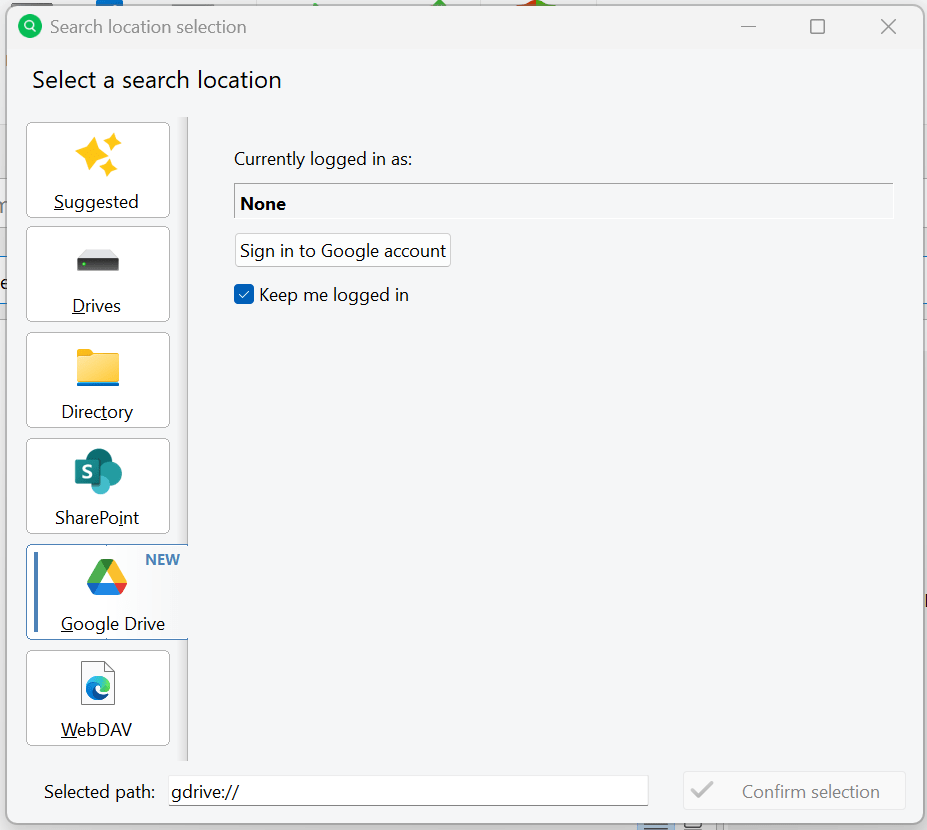
The login button takes you directly to your browser, where you can log in to your Google account as usual. Important: You must confirm that you trust UltraSearch.
Once you have logged in, you can immediately start searching for file names or file contents as usual. Existing filter options and file previews also work as usual.
Show transcription
This video contains no audio (silent screen recording). The following description conveys what is shown on screen.
It shows UltraSearch Professional searching a Google Drive. A Google Drive path (“gdrive://”) is selected as the search location.
A search for “Sales” returns 7 objects (350.75 KB) in the folder “gdrive://Sales Reports/”, including “Sales 2024 Presentation.pptx” and several Excel files (“Sales 2019.xlsx” to “Sales 2024.xlsx”).
The preview pane shows selected files directly — for example the PowerPoint presentation “Sales Report 2024” and an Excel spreadsheet with the columns “JAM Softwar ID” and “Costs”.
What makes UltraSearch so special? In addition to Google Drive, you can define other search paths such as local drives or folders, network drives, or SharePoint paths.
UltraSearch can search all search paths simultaneously and deliver results in seconds.
Show transcription
This video contains no audio (silent screen recording). The following description conveys what is shown on screen.
It shows UltraSearch Professional searching several locations at once. The selected search paths are local or network drives (E:\, F:\, G:\, H:\) and a Google Drive (“gdrive://”).
A search for “Sales” queries all locations together and finds 95 objects (about 994 MB) — files such as “Sales KPIs 2023.docx”, “Sales 2021 TreeSize.xlsx”, “Sales Report_2025.csv”, and “Sales 2019.xlsx” from various folders and drives.
The preview pane shows a selected file, for example the Excel spreadsheet “Sales 2019” with the columns “JAM Softw ID” and “Costs”.
Good to know: UltraSearch supports Google Workspace file icons for file types such as .gdoc and .gsheet. To display file icons correctly, please download and install the free Google Drive Desktop Client.
How to add search paths even faster
After receiving some feedback on the selection of search paths, we have made a few improvements, which we would like to briefly explain in this section.
Our new control element now makes it much easier to add search paths directly. This can be done by entering the path directly or pasting it from the clipboard. Press ENTER to add a new search path directly.
Show transcription
This video contains no audio (silent screen recording). The following description conveys what is shown on screen.
It shows UltraSearch Professional. Search paths are added in the “Search in” bar.
Paths can be added via “Add search path” or the input field; a suggestion list offers, among others, C:\, E:\, G:\Backup, and a Google Drive (“gdrive://”). As you type, matching paths are auto-completed, e.g. “G:\Abrechnung Bodo” or “G:\Angela Meeting”.
Once added, the chosen paths appear as entries in the “Search in” bar, for example C:\, E:\, and G:\Backup.
UltraSearch recognizes the path immediately and also assigns a corresponding path icon.
This also makes it easier to edit an existing search path. Simply click on the corresponding search path and you will immediately enter edit mode.
Show transcription
This video contains no audio (silent screen recording). The following description conveys what is shown on screen.
It shows UltraSearch Professional. An existing search path is edited in the “Search in” bar.
As you type, UltraSearch completes the path step by step — from “C:\” via “C:\Users\” to subfolders such as “C:\Users\smith\Desktop” — each with a suggestion list of matching folders.
The finished path appears as an entry in the “Search in” bar, alongside other paths such as E:\ and G:\Backup.
Of course, it is also possible to insert complete addresses, such as to your SharePoint page or a Google Drive directory, via the clipboard.
Show transcription
This video contains no audio (silent screen recording). The following description conveys what is shown on screen.
It shows UltraSearch Professional. Paths are pasted from the clipboard into the “Search in” bar.
For example, a SharePoint address (“https://jamsoftwaregmbh.sharepoint.com/sites/JAMSessions”) and a Google Drive path (“gdrive://Marketing”) are pasted; the history list shows previously used paths.
The pasted targets appear as entries in the “Search in” bar, such as “JAMSessions” (SharePoint) and “Marketing” (Google Drive) next to C:\.
Try it out for yourself. We look forward to your feedback!
For beginners: Comprehensive onboarding for the first steps
UltraSearch is a very powerful search tool. This can be a bit challenging for new users and beginners at first.
To make it easier to get started, we have written a detailed tutorial that is suggested when you first start the application.
In this article, we clearly explain the basics of file search with UltraSearch.
How searching for file names and file contents differs, how to display a file preview, and how to narrow your search with filters. We also explain the basics of UltraSearch search syntax.
Would you like to recommend UltraSearch to new users in your organization? Then please share our article.
Install UltraSearch without admin rights
Finally, we would like to mention a small but useful improvement. It is now possible to install UltraSearch without admin rights. The selection can be made in a small dialog box when starting the installation file.
In this case, UltraSearch is set up exclusively in the user context and can only be used in this context.
This allows us to make UltraSearch available to users who do not have administrator rights on their computers.
Your feedback is important to us
With version 4.9, we are once again introducing many new features for UltraSearch. All changes can be found in our changelog.
But one thing must never be neglected: your satisfaction.
How satisfied are you with the update? What are you still missing? We look forward to your feedback and suggestions for improvement. Simply write to us at ultrasearch@jam-software.com.
No longer have access to updates? No problem! Renew your license at a low cost in our customer area. If you have any further questions, please do not hesitate to contact us!