


More Storage Space for Content Creators
Where your storage goes, what you can delete and how to stay organized.


Raw footage, proxies, caches, ten export versions: As a content creator, you fill up your drives faster than you can buy new ones or sign up for additional cloud storage. This post shows you where storage space gets used up in video and streaming workflows, which files you can safely delete, how to organize your data going forward, and how to keep things organized in the long run.
Why is the SSD always full for content creators?
This is because video and streaming workflows not only generate large original files, but also add additional data at nearly every step of the process: proxies, caches, auto-saves, interim exports, and backup copies. As a result, a project often grows much faster than you realize in your day-to-day work.
The problem is usually not just a lack of storage, but a lack of overview. If you don’t know exactly which data is still needed, what can be regenerated, and what already exists in duplicate, you might delete files hesitantly or rush to purchase additional storage space.
This can get expensive, especially when you’re under time pressure: A full storage device can interrupt recordings, cause exports to fail, and slow down workflows. Keeping your storage organized therefore saves not only space but also time, stress, and ongoing costs.
Where is most of the storage space lost?
In five categories: raw data, cache and temporary files, export versions, auto-saves, and duplicates. You won't see much of this in Windows Explorer, since it doesn't display folder sizes.
- Raw footage: High-bitrate recordings from OBS Studio, multicam tracks, and camera maps, which you’ve copied twice just to be safe.
- Cache and temporary files: Media cache, render cache, optimized media, and proxies from your editing software. These can be regenerated at any time, yet they often take up hundreds of gigabytes.
- Exported versions: “final_v3_really_final.mp4” in multiple resolutions, plus every intermediate version from the feedback loop with the client.
- Auto-saves and project backups: Editing programs automatically save backup copies of your project files, thousands of them over the years.
- Duplicates: The same clips on your workstation, external SSD, NAS, and in the cloud.
What are proxies and media caches?
Proxies are small, highly compressed copies of your original videos that allow for smooth editing even on less powerful hardware. The editing software creates them during import; during the final export, it reverts to the originals. With high resolutions and RAW formats, proxies are invaluable during editing. Once the project is complete, they’re just dead weight, since the originals still exist.
A media cache is a temporary storage area where the editing software stores pre-calculated audio and preview data so that playback starts faster. It, too, is recreated as needed.
| Creator type | Typical setup | Biggest space hog |
|---|---|---|
| Streamer | Gaming PC, local SSD, external drive if needed | Stream recordings, replay buffer clips, highlight exports |
| Video producer / YouTuber | Camera, workstation, external SSDs, NAS | RAW/ProRes footage, proxies, caches, client exports |
| Short-form / social creator | Smartphone as camera, laptop, cloud sync | Many small exports per platform, thumbnails, sounds |
Which files can I delete when editing a video?
Everything that the software can regenerate - media cache, render cache, preview files, proxies, and optimized media - provided the originals are backed up. Original footage, final exports, project files, and license certificates are archived, not deleted.
The rule of thumb: Anything that can be regenerated can be deleted. Anything that is one-of-a-kind is archived.
| Recommendation | Files | Note |
|---|---|---|
| Delete | Media cache, render cache, preview files | Your software can regenerate them |
| Proxies and optimized media | Safe to delete as long as the originals are backed up | |
| Interim exports from feedback rounds | Safe to delete once the final video is approved | |
| Check first | Unused raw footage and recordings | Save the highlights first, then archive |
| Duplicates | Only delete if the checksum clearly shows which copy is the master | |
| Auto-saves and old project versions | The latest version is enough if it opens without errors | |
| Keep and archive | Original footage | It can't be recovered |
| Final export and project file | At least one master per video | |
| Licensed music, sounds and fonts with proof of license | You'll need them as proof if a copyright claim comes in |
For Streamers
Cut the highlights from your recordings before you archive or delete the raw file. The VODs on the platform are not a backup.
For Video Producers
For client projects, clarify how long you should retain source material and project files, and include this information in your proposal.
For Short-Form-Creator
Designate a single source as the “truth,” such as the project folder on your laptop. Everything else is a copy and can be deleted.
Analyze First, Then Delete: Free Up Storage in Six Steps
- Take Stock: Get an overview of where everything is, how large it is, and how old it is. Sort by folder size, file type, and last access date.
- Delete files that can be recreated: Caches, proxies, render files, and preview files from completed projects. Typical folder names include “Media Cache,” “CacheClip,” “Optimized Media,” or “Proxy.”
- Consolidate projects: Keep only the clips that actually made it onto the timeline, plus a few seconds of buffer (handles).
- Clean up duplicates and versions: Keep one master and one final export per video. You can reliably identify duplicates using checksums, not filenames.
- Move instead of deleting: Anything that isn’t actively needed but can’t be discarded should be moved to more affordable storage such as a NAS, HDD, or cloud archive.
- Check: Measure again after cleaning up. How much space has been freed up? And what is still growing?
How do I organize video files properly?
By life cycle: shooting, editing, archiving. Active projects are stored on fast SSDs, while completed projects are stored on cost-effective storage such as NAS, HDD, or cloud archives. This way, you only use expensive storage where you really need it.
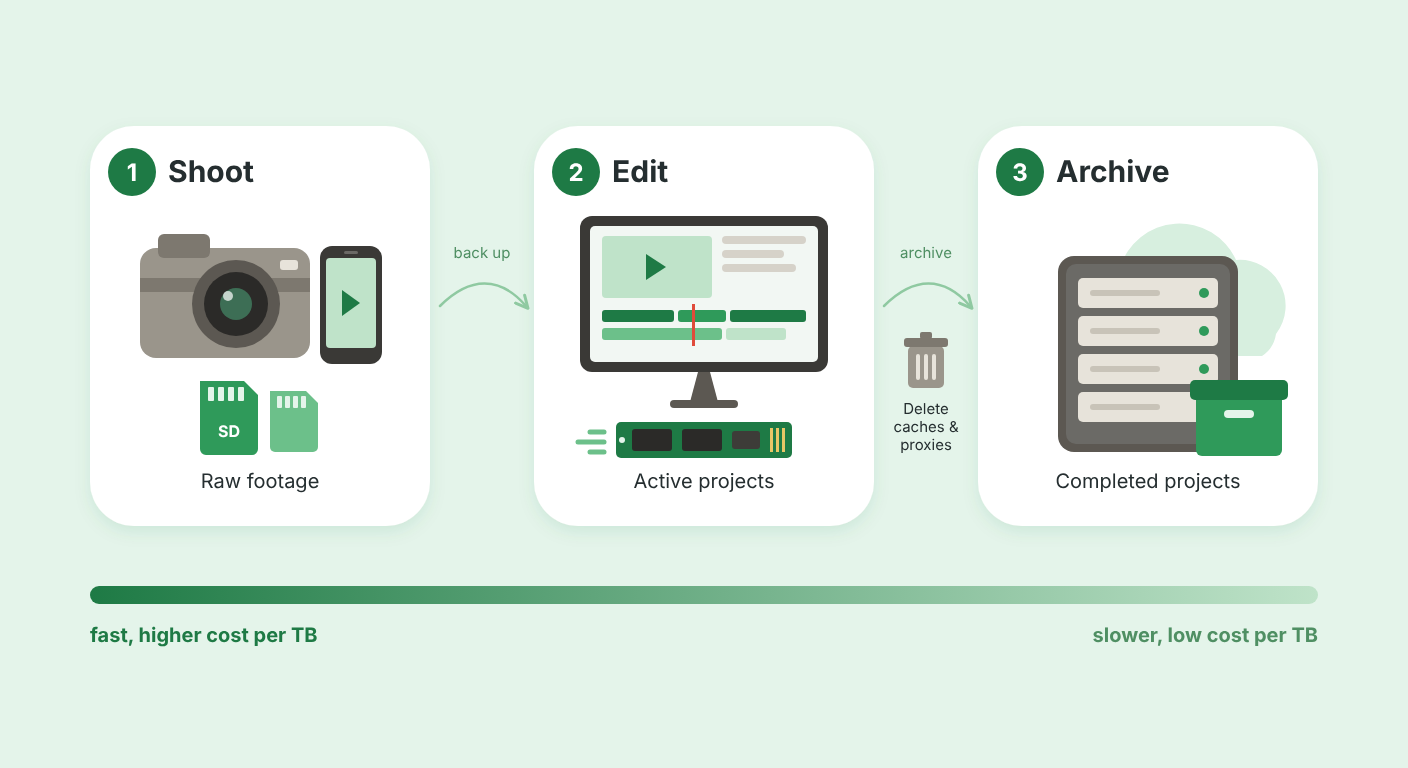
| Phase | Storage | Why | What belongs there |
|---|---|---|---|
| Shoot | Memory card, smartphone, local SSD | Right on the device | Raw footage, back it up immediately |
| Edit | Internal NVMe SSD, fast external SSD | Speed for timeline, caches and export | Working copy of raw footage, project file, proxies, caches |
| Archive | NAS with HDDs, archive drives, archive cloud | Lowest cost per terabyte | Consolidated projects, masters, final exports |
SSD or HDD?
SSDs provide the speed needed for active projects. HDDs are significantly cheaper per terabyte and are therefore ideal for archives, backups, and NAS systems.
A NAS (Network Attached Storage) is a small, dedicated file server on your network that all your devices - or your entire team - can access at the same time. In the cloud, it’s worth using archive storage classes, which are cheaper but slower to access.
What is the 3-2-1 backup rule?
The 3-2-1 rule means: 3 copies of your data, on 2 different types of media, with 1 of them stored in a different location. It’s the foundation that allows you to safely clean up and delete files in the first place.
Important to note: Above all, you should back up one-of-a-kind data such as original recordings, project files, and final exports. Caches, proxies, and intermediate exports generally don’t belong in the backup because they can be regenerated as needed.
This way, you take the strain off your fast work SSD in two ways: You keep it free for active projects and, at the same time, avoid unnecessarily large backups. After all, every superfluous duplicate not only takes up local storage space but often also additional space on a NAS, external hard drive, or in the cloud.
What tool can help me analyze and free up storage space?
TreeSize is the Windows tool from JAM Software for when your disk space is sneaking away from you yet again. It helps you analyze and clean up your system without having to laboriously click through project folders, exports, and cache directories. Instead, TreeSize shows you in just a few minutes where large folders, huge files, and the typical disk space hogs are located. While it doesn’t edit video or schedule streams, it still ensures that your setup doesn’t slow you down.
TreeSize: Find and Clean Up Memory-Hogging Files
Watch the video to see how easy it is to perform an analysis with TreeSize. It gives you a quick overview in just over a minute:
Select the drive or project folder you want to examine. In just a few moments, you’ll see which folders are taking up the most space. Large cache, render, and raw footage folders stand out immediately.
Analyze by File Type and Age: In the file type view, you can see at a glance how much storage is taken up by video files, for example. The age view shows you how much data hasn’t been modified in months or years. This helps you find large .mkv, .mov, or .braw files that might be suitable for archiving.
Find duplicates: Use the file search to locate duplicate files and specify which copy should be kept. TreeSize displays a preview before you delete or merge them. If needed, you can merge duplicates using hard links. This only works on NTFS and within the same drive.
You can find detailed step-by-step guides on our blog, on YouTube, and on the TreeSize website, for example: Deduplicate files
Which tool and license are right for you?
Which tool is right for you depends mainly on what your setup looks like. TreeSize Free is often enough to get started: It lets you quickly see why your drive is full and helps you clean it up in a targeted way. If you work with multiple drives or a NAS, TreeSize Personal also helps you track down duplicates and stay organized.
The table shows you the right storage management tool for typical creator setups.
| Your situation | Recommendation | Why |
|---|---|---|
| Beginners who want a quick overview | TreeSize Free | Quickly spot space hogs on your local drive, free for personal use |
| Streamers with lots of recordings | TreeSize Personal | Find large recordings, old clips and duplicates |
| Short-form creators | TreeSize Personal | Track down export variants for different platforms and duplicates |
| Freelance video producers with multiple drives | TreeSize Personal | Duplicates across multiple drives, scan comparison, NAS in a typical home network |
| Small teams with shared storage | TreeSize Professional | Unrestricted network drives, scheduled scans, command line |
Ready for more space?
Buying more storage isn’t always the best first solution. In many cases, it’s enough to systematically sort through your files: delete files that can be recreated, archive one-time files, and keep active projects on fast storage. This way, you not only free up space but also reduce unnecessary costs for SSDs, cloud storage, and backups.
Your next step: Start by analyzing your largest drive or project folder. This will quickly show you which files are really taking up space and where you can safely clean things up.
If you want to pinpoint storage hogs and clearly analyze large project folders, try TreeSize. It lets you see at a glance which folders are growing, where duplicates are located, and which data belongs on fast storage. You can test TreeSize for free and try out all its features at your own pace on your own setup before deciding on a license.