

How To Clean Your PC
On each system, redundant files accumulate over time. Those space hogs block valuable disk space and can even slow down your PC.
With TreeSize you can identify very large or old files, temporary files, duplicates and much more in no time and clean your PC!
Show transcription
[On Screen: Intro: “Remove Duplicates” with the TreeSize logo; two identical PDF icons, one marked with a red cross.]
Are you looking for duplicate files in your file system or on your server? TreeSize helps to clean up the space hogs of copied documents and duplicate files.
[On Screen: The TreeSize file search: in the “Predefined” group the duplicate file search is activated; target paths can include local drives, cloud storage services and a SharePoint server. The “Duplicate Files” ribbon offers a comparison method, the choice of files or folders, and filters (size, file type).]
To do this, open the TreeSize file search and activate the duplicate file search in the Predefined group. Now select one or more target paths for the scan. All drives mounted in Windows Explorer, as well as various cloud storage services, can be selected here. In the Duplicate Files ribbon, you can then select a comparison method and decide whether you want to search for duplicate files or folders. Filters help to include only files of a certain size or with certain file types. Click on Start, and TreeSize lists the duplicates found on all selected scan targets.
[On Screen: The results list groups the duplicates found; using the checkboxes or “Select all but newest”, the files to be deleted are selected.]
The results list can be sorted by various criteria, such as file size. Select the files you want to delete by hand using the checkboxes, or by selecting “Select all but newest”. You can also move or archive the selected items, for example. Already done.
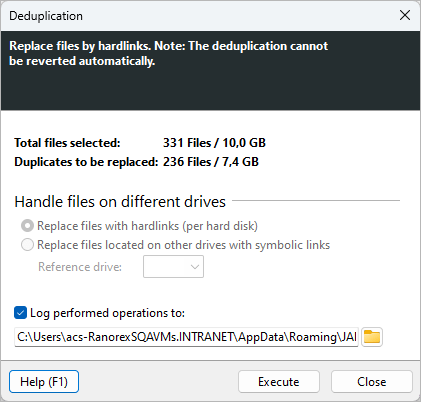
[On Screen: The deduplication dialog: instead of deleting, duplicate files are replaced by NTFS hardlinks (with a note that this cannot be reverted automatically).]
Another case: a construction company has many different project folders on its file server, often containing the same relevant PDFs, which include norms and standards. These should not be deleted, but in total they occupy a lot of space. Instead of deleting duplicate files, you can deduplicate them with TreeSize. This replaces the duplicate files with NTFS hardlinks. So each duplicate file no longer consumes its own space, but points to the same location on the hard disk.
[On Screen: In the search filters, the comparison method “Name” is chosen and a name filter is set up, to find files with the same or a similar name across all data stores.]
Often, administrators are specifically looking for documents with the same name but different content — for example, when multiple versions of a documentation are distributed across different directories. TreeSize can find groups of files with the same or similar names across all data stores. To do this, select the comparison method “Name” and also set up a name filter. Now you can see where the document is located. Again, select “Select all but newest” and delete the remaining files. Already done.
Find and erase duplicate files
TreeSize can find duplicate files and allows removing them instantly.
Afraid of deleting files right away? TreeSize can deduplicate file duplicates as well, using NTFS Hardlinks.
Search for old or large files
Obsolete files can waste quite an amount of disk space. To clean up your PC, use the TreeSize File Search to search for old files and sort them in a result list.
TreeSize can find the largest files on your system as well. Get an overview of very large files across all folders and easily move or delete them right away.
Delete temporary files
Temporary files remaining on your computer should be removed regularly. A disk cleaner can help, but you should always check for temporary files using the TreeSize file search.
Gain the bird's eye view before running a pc cleaner
Sometimes taking a look at the graphical interpretation of disk space usage can help deciding how to use your hard disk cleaner.
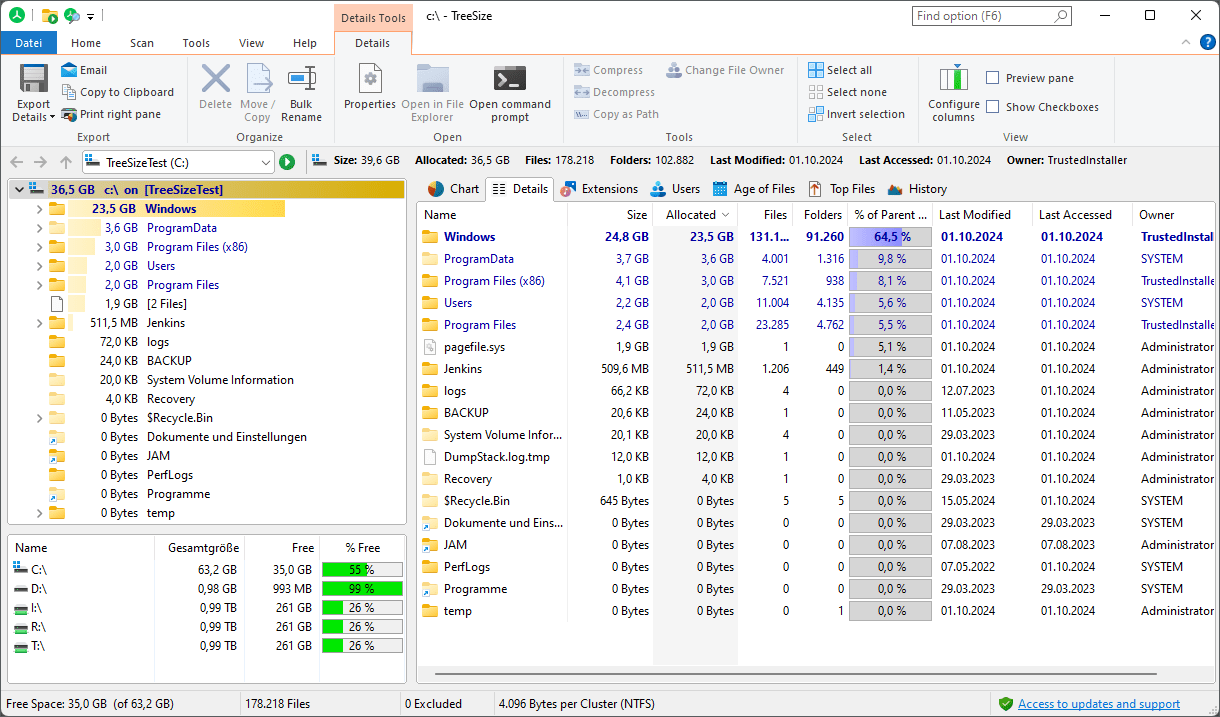
TreeSize visualizes folder sizes right down to file level - all subfolders are included.
2D or 3D tree maps allow you to see how your disk space is used.
The clear detailed view presents all relevant file information. Here you will find, for instance, the last access date of a file - there is no easier way to get rid of old files!