


What is a SEPA Mandate?
You need a SEPA mandate to collect a SEPA direct debit. By signing the SEPA direct debit, the payer confirms that you are allowed to debit his account.
A SEPA direct debit mandate contains, inter alia, the following information:
- Creditor ID (provided by your bank)
- Unique mandate reference
Example:
Municipal utilities collect the discounts for electricity costs by direct debit. To do this, the administration requires written permission from their customers. This is the SEPA mandate. On this mandate, the direct debit for the monthly electricity bill and the debit date (e.g. on the 15th of each month) are agreed.
Mandate Variants
A basic distinction is made between single mandates and multiple mandates:
- A single mandate, also known as a single debit memo, is only valid for one transaction. This can be a one-time payment for goods, for example. If it is not used within 36 months of being issued, it is regarded as expired.
- A multiple mandate is valid until it is revoked. Here, too, the mandate must be used within 36 months of being granted, otherwise it expires. The multiple mandate can be used for large number of SEPA direct debits.
In addition, a distinction is made between basic direct debits and company direct debits. A company direct debit is designed for payment transactions between companies and may therefore only be used in the B2B area. The basic direct debit, on the other hand, is used for payment transactions between companies and private consumers.
How can SEPA-Transfer backup your process?
Whether for SEPA direct debits, recurring collective payments or printing a SEPA mandate: SEPA mandates have many different application scenarios. But in order for work processes to become truly agile, an efficient and easy-to-understand tool is needed.
With SEPA-Transfer, our goal is to provide banking software that is tailored to the main use cases of SEPA payments. SEPA-Transfer remains streamlined, user-friendly and, above all, cost-effective.
Show transcription
[On Screen: Intro: the SEPA-Transfer logo with the German tagline “SEPA-Zahlungen automatisieren und Zeit für wichtige Arbeit sparen” (automate SEPA payments and save time for important work).]
Managing a high volume of SEPA payments without any fuss? SEPA-Transfer is your banking tool focused on the functions that really matter.
SEPA transfers can occur regularly. If you have to send an invoice to the same supplier once a month, perhaps only the amount and the payment reference change — the IBAN stays the same. SEPA-Transfer enables convenient and secure transfers via its interface: the transfer is saved as a template; for the next payment you only need to load the template and adjust the amount and payment reference. That saves an enormous amount of time.
[On Screen: “Handy templates”: a booking form with recipient, IBAN, BIC, amount, payment reference, execution date, and SEPA Purpose Code, saved as a template and loaded again.]
Organize your payment data in Excel tables, in a CSV or a SEPA XML file. Import the data into SEPA-Transfer as a batch with ease. To do so, click on “Import/Export” and here on the import wizard. Select your file type and booking type.
[On Screen: The SEPA-Transfer import wizard with a choice of booking type (credit transfers or SEPA direct debits).]
SEPA-Transfer supports both SEPA credit transfers and SEPA direct debits, individually and in batches. If, at the end of the month, you want to pay salaries to all your employees, that is extremely fast with SEPA-Transfer. Select “Credit transfers” and make sure the row mapping is correct. SEPA-Transfer recognizes the columns directly and maps them correctly to the transfer.
[On Screen: The column mapping assigns the Excel columns to SEPA fields (recipient, IBAN, amount, payment reference, execution date, and more), with a data preview.]
After the import, you see all open transfers in a list. You can also import SEPA direct debits as a batch, for example to regularly collect membership fees as the treasurer of an association. Import your payment data and then select “SEPA direct debit”. The mandate reference uniquely identifies the SEPA mandate; SEPA-Transfer can import these as well or create them automatically. Finish the import, and you see all bookings in the usual view.
[On Screen: The “Handling invalid transactions” wizard, and the management of mandate references and SEPA mandates.]
With SEPA-Transfer, forward bookings straight to your bank, in an HBCI- or FinTS-compliant way. Click on “Send bookings” and select the open bookings you want to send. Enter your PIN. SEPA-Transfer supports several TAN methods — besides the classic list-based TAN method, also iTAN, mobileTAN, smartTAN, and chipTAN. Then just send it off.
[On Screen: “Secure online banking”: the online-banking dialog (HBCI/FinTS) with PIN and TAN entry and the confirmation “Online banking successful”.]
Open your account in SEPA-Transfer. Here you can narrow down the time periods in a clear list. If you are looking for unusually high amounts, you can filter for bookings of, say, more than 500 euros. This way you keep a clear overview of your payments.
[On Screen: “Smart management”: a list of account transactions with filters by period and amount to spot irregularities.]
Would you like to give your tax advisor access to the last week's account transactions? Simply export the data as a PDF or print it directly from the interface.
How can you use SEPA-Transfer for your payments? Why not try it out — with our 30-day trial version.
[On Screen: Closing screen with the SEPA-Transfer logo and the address www.jam-software.com.]
These are the most popular use scenarios of SEPA-Transfer:
Generate direct debits from SEPA mandates

A SEPA mandate is nothing more than the written permission of the payer to deduct amounts from his account. If, for example, the treasurer of a booster club wants to collect the annual funding amounts, he must first convert the mandate into a SEPA direct debit.
Our user-oriented tool SEPA-Transfer is designed exactly for this use case. In addition to the mandate reference, the payment data such as the name of the debtor, account number (IBAN), amount and also the reason for payment can be stored digitally. A convenient import from an Excel list is particularly suitable for this. If all payment data are digitally deposited, the treasurer can generate the corresponding direct debit mandate and print it. Alternatively, SEPA-Transfer also supports the digital forwarding of the direct debit to the bank.
Automize recurring payment tasks

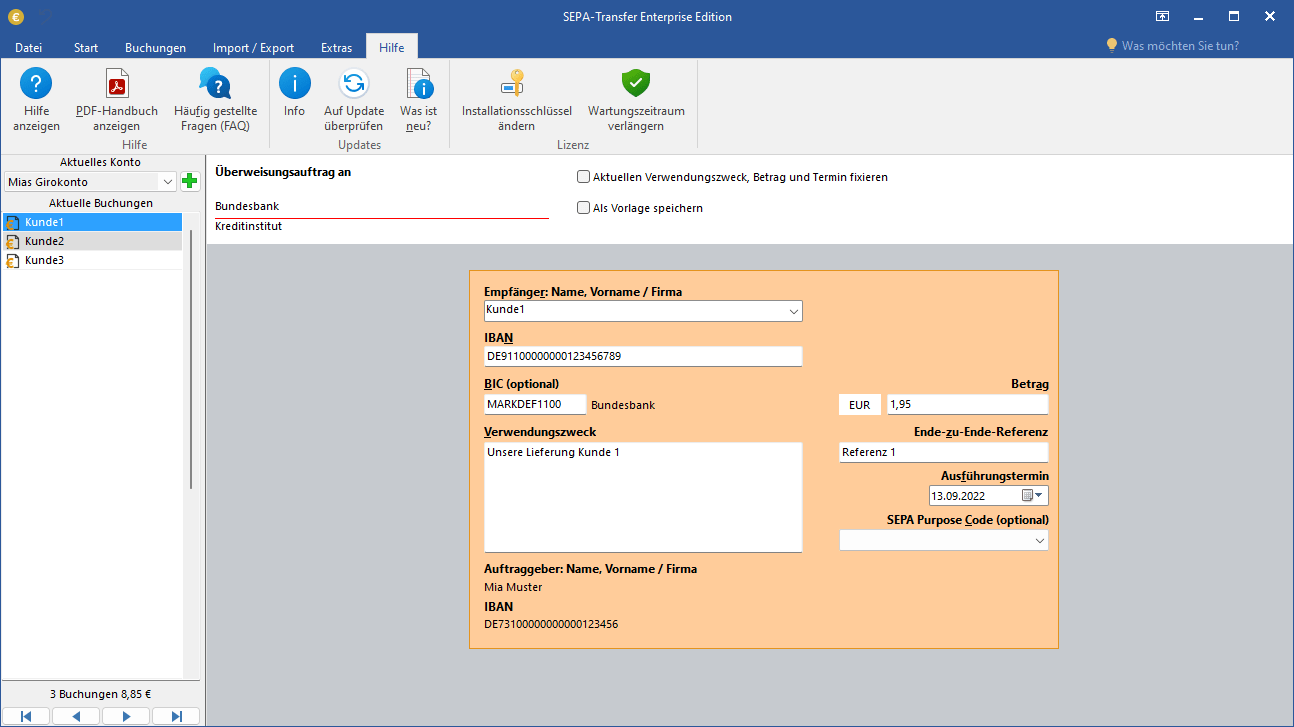
SEPA mandates become particularly relevant when certain payments recur at regular intervals. For example, both membership fees and salaries are due monthly - especially in smaller companies and organizations, extensive and expensive banking software is not worthwhile for this, which is why the SEPA process is then carried out manually. But SEPA mandates can also be much more convenient.
A clever digital process provides a remedy: SEPA Transfer saves payments made so that they can be easily retrieved for the next payment. The important client reference, name, account details and amount are therefore automatically re-entered in the mask. Particularly practical for collective transactions.
We have automated our in-house canteen process with the help of SEPA-Transfer. We'll show you how we did it on our blog. Take a look!
Print SEPA mandates easily

SEPA-Transfer offers you ready-to-use print templates of all required forms. The forms contain data stored by you and become a completely filled out SEPA direct debit mandate with just one click. You can print this out ready for dispatch on any printer without any problems.
If you want to fill out the form by hand instead, you can use our SEPA direct debit form for free.
Try SEPA-Transfer for free
Are you looking for a tool for your SEPA payments?

SEPA-Transfer Small Business Edition